How Hirenix teaches
One chapter. 90 minutes.
Interview-ready.
Every concept starts with a real-world problem — the kind that actually shows up in production code. Nothing to cram; it just clicks. Every question comes with a model answer: exactly what to say in the room, and why. Then an AI mock interview on the same chapter.
- 📖Concept in 5 minutesNo jargon — straight to the point
- 🛠️Real-world problemThe kind production code throws at you
- 💬Model answerExactly what to say in the room
- 🧠FlashcardsRevise in 10 minutes
- 🤖AI mock interviewIt asks follow-ups too
- 📊Weak topicsSee exactly where you're stuck

The difference isn’t the content — it’s the filter. Only what’s actually used in production and actually asked in interviews. Textbook topics the industry never touches don’t make the cut.
Certificates
Learn all 12 topics and earn your HTML certificate
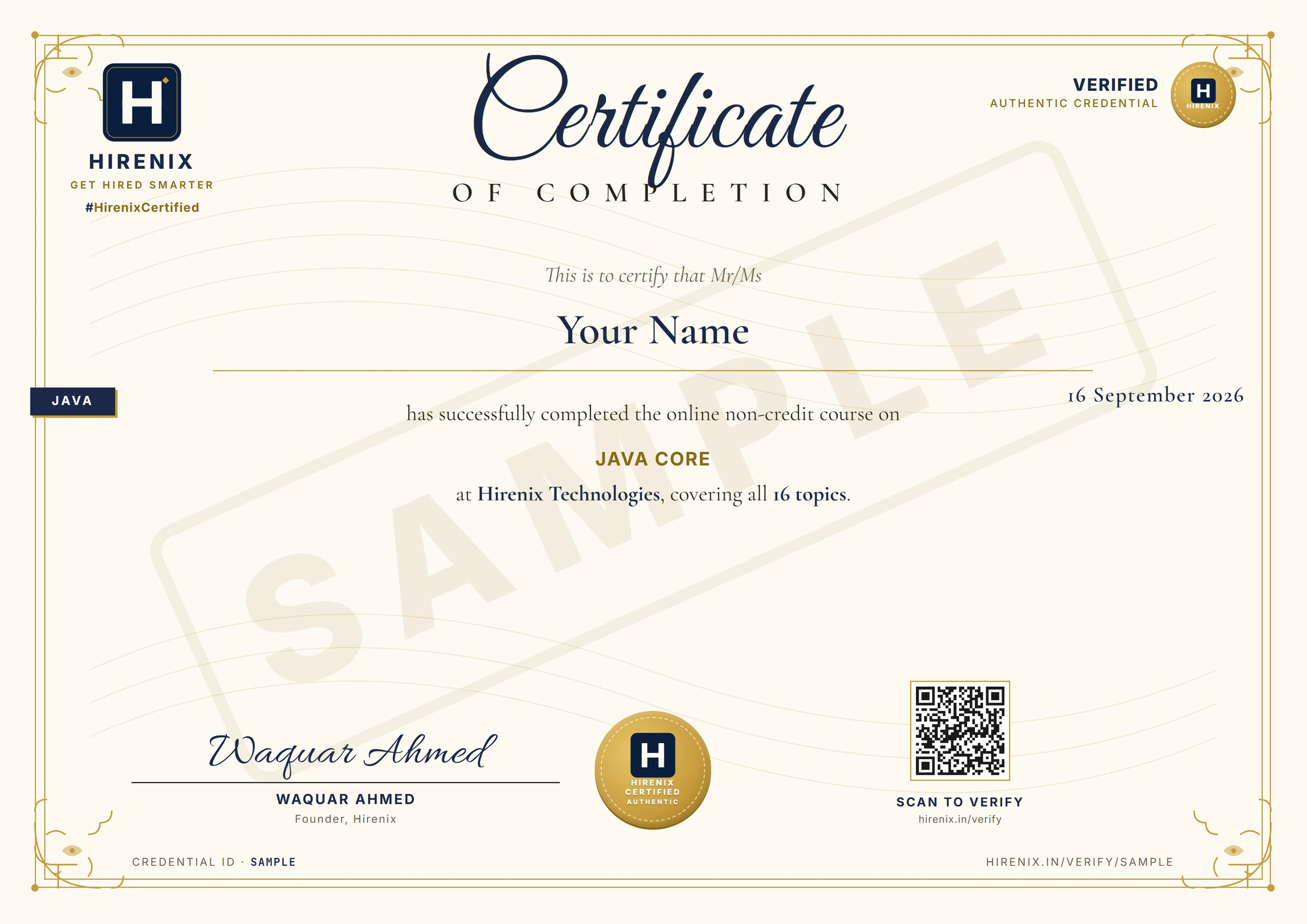
Finish every HTML topic and a certificate with your name on it is issued instantly. No exam, no waiting. Download it, share it on LinkedIn, and put it on your resume.
Chapter certificate
Your name, the HTML course and all 12 topics on it.
Stack Mastery certificate
Finish every MERN Stack chapter for the MERN Stack Mastery certificate.
Anyone can verify it
Each certificate has a QR code and a public link at hirenix.in/verify.
Verified credential
hirenix.in/verify/…
What you’ll learn
- ●What is HTML?
- ●Text, headings, lists, links
- Semantic HTMLPro
- Forms and inputsPro
- Links and mediaPro
- TablesPro
- Accessibility (a11y)Pro
- Metadata and SEOPro
- RecapPro
- ●Project: Resume Page
- Project: Signup FormPro
- Project: Blog ArticlePro
Free lessons
What is HTML?
Think of a house under construction. Before paint colours (CSS) or working doorbells and switches (JavaScript), a house needs its skeleton — walls, rooms, doors, a roof. That skeleton says what each space is: this is a bedroom, this is the kitchen, this is the front door. Nobody argues the skeleton with the interior decorator's job — they're different jobs on the same house.
In HTML, that skeleton is what you build. HTML (HyperText Markup Language) marks up content to say what it is — a heading, a paragraph, a list, a link — not how it looks (CSS's job) or how it behaves on click (JavaScript's job). The browser reads your HTML file and builds the page's structure from it.
🌍 Real-world example: A news website's article title is marked as a heading, the byline as a paragraph, and "related articles" as a list — regardless of what colour or font the designer later picks.
💡 Tag = the marker itself, like
<p>(opening) or</p>(closing) — just the bracketed piece. 💡 Element = the tag PLUS its content PLUS its closing tag:<p>Hello</p>is one element. 💡 Attribute = extra information written inside the opening tag, asname="value"pairs — e.g.class="intro"inside<p class="intro">. 💡 DOM (Document Object Model) = the tree-shaped structure the browser builds in memory after reading your HTML — every element becomes a node in that tree, and this is what JavaScript actually manipulates.
Every HTML file starts the same way: <!DOCTYPE html> tells the browser "parse me using the modern HTML5 rules" — it is not a tag or element itself, just a one-line declaration. Then <html lang="en"> wraps everything. Inside it, <head> holds metadata that isn't shown on the page (title, character encoding, links to stylesheets), and <body> holds everything that IS shown — text, images, buttons, the actual page content.
One more classic interview point: HTML is not a programming language. It has no variables, no loops, no if conditions, no logic — it only describes structure using elements and attributes. The logic layer of the web is JavaScript; HTML just says what exists.
When HTML is the whole answer: static content — an article, a docs page, a landing page, a form that posts to a server. Modern HTML and CSS do a great deal without a single line of JavaScript, and a page built this way loads instantly and works with JavaScript disabled.
When you need more: the page must react to the user without a round trip — live validation, drag and drop, a chart that updates. That is JavaScript's job, and reaching for it before HTML and CSS have run out is how simple pages become slow ones.
Trade-off: HTML is forgiving by design — forget a closing tag and the browser guesses and renders something anyway. That is why the web never breaks the way a compiler breaks, and it is why HTML bugs are silent: no error, just a layout that is subtly wrong. A validator and the browser's element inspector are how you see what the browser actually built, rather than what you thought you wrote.
Standard definition: HTML (HyperText Markup Language) is the markup language used to structure content on the web; the browser parses an HTML document into the DOM, a tree of elements it can render and that JavaScript can manipulate.
<!DOCTYPE html>
<html lang="en">
  <head>
    <meta charset="UTF-8">
    <title>My First Page</title>
  </head>
  <body>
    <h1>Welcome</h1>
    <p class="intro">This is my first HTML page.</p>
  </body>
</html>
Text, headings, lists, links
Imagine writing a book manuscript for an editor. You don't just dump walls of text — you mark chapter titles, section titles, ordinary paragraphs, a bullet list for ingredients, numbered steps for instructions, and footnote references pointing to other pages or sources. The editor (and a screen reader, and Google) needs to know which text is which — not just how big the font looks.
In HTML, <h1> through <h6> are those chapter/section titles — <h1> is the book title, <h2> a chapter, <h3> a sub-section, and so on down to <h6>. Together they form the page's document outline, the same way a table of contents nests. <p> is an ordinary paragraph of text. <ul> (unordered list) is your bullet list — order doesn't matter; <ol> (ordered list) is your numbered steps — order matters. Each item inside either one is an <li>. <a href="..."> is the footnote reference — click it and you jump somewhere: another page (about.html), another site (https://example.com), or a spot on the same page (#contact). For emphasis, <strong> says "this word matters" and <em> says "say this with stress" — that's meaning; <b> and <i> only change the look (bold/italic) with no meaning attached.
🌍 Real-world example: A recipe page —
<h1>Chai Recipe</h1>, then<h2>Ingredients</h2>with a<ul>of items,<h2>Steps</h2>with an<ol>of instructions, and a<p>with<strong>Tip:</strong>plus an<a href="#steps">jump to steps</a>link.
💡 Document outline = the nested h1→h6 structure a screen reader or browser can list as the page's table of contents. 💡 Relative URL = a path from the current page (
about.html,../images/pic.png) — no domain needed. 💡 Absolute URL = the full address including protocol + domain (https://example.com/about). 💡 Fragment link =href="#id"jumps to the element with thatidon the same page.
When to use which heading level: by position in the outline, never by size. One <h1> naming the page, <h2> for its main sections, <h3> inside those. If a heading looks too big, that is CSS's problem — picking <h4> to make it smaller silently breaks the document outline.
When to use a list: any time items are genuinely a set — navigation links, steps, features. <ol> when the order carries meaning (steps in a recipe), <ul> when it does not. A screen reader announces "list, 5 items", which is real navigation information that a stack of <div>s does not provide.
Trade-off: heading levels serve two audiences with one attribute — visual hierarchy for sighted readers and a navigable outline for assistive tech and search engines. Because CSS can make any level look like any size, the two can be styled apart, and the moment you do that from the HTML side instead of the CSS side, the outline is the thing that silently loses.
Standard definition: Headings (h1–h6) define a page's document outline and must not skip levels for styling reasons; <p> marks a paragraph; <ul>/<ol> with <li> mark unordered/ordered lists; <a href> creates a hyperlink using a relative, absolute, or fragment URL; <strong>/<em> add semantic emphasis while <b>/<i> are purely presentational with no meaning.
<h1>Chai Recipe</h1>
<p>A quick <strong>5-minute</strong> chai for one cup.</p>

<h2>Ingredients</h2>
<ul>
  <li>1 cup water</li>
  <li>1 tsp tea leaves</li>
  <li>Milk and sugar to taste</li>
</ul>

<h2 id="steps">Steps</h2>
<ol>
  <li>Boil the water.</li>
  <li>Add tea leaves and simmer.</li>
  <li>Add milk and sugar, then strain.</li>
</ol>

<p><em>Note:</em> for more recipes visit our <a href="recipes.html">recipes page</a>,
or read about us <a href="https://example.com/about">on our main site</a>,
or jump back to <a href="#steps">the steps above</a>.</p>
Project: Resume Page
What we're building: A real, semantic HTML resume/CV page — the same page you'd deploy as yourname.com and link from your job applications. A header with your name and contact links, an Experience section, an Education section, a Skills section, and a photo — built with the right element for each piece of meaning, not <div> soup. This is the entry project for the HTML chapter — it locks in everything from Topics 1 and 2 (structure, headings, lists, links) and previews semantics (Topic 3) before you've even met that word formally.
Important scope note: this project is structure only. No colours, no fonts, no spacing — that's the CSS chapter, next. Right now a recruiter's browser will render this page in plain black-on-white with default browser styling, and that is correct for this stage — we're getting the meaning right first, the look comes later. A resume that is structured correctly with real HTML is also one a screen reader can read aloud sensibly, and one an ATS (Applicant Tracking System) parser can extract clean text from — both are real payoffs of doing this step properly.
Type each step, save the file, open it in a browser (double-click the .html file, or use a Live Server extension), and look at the result before moving to the next step.
Step 1 — The document skeleton
<!DOCTYPE html>
<html lang="en">
<head>
  <meta charset="UTF-8">
  <meta name="viewport" content="width=device-width, initial-scale=1">
  <title>Aditi Sharma — Resume</title>
</head>
<body>

</body>
</html>
What's happening: <!DOCTYPE html> is the very first line — it tells the browser "render this in modern standards mode," and it is a declaration, not an HTML element (no closing tag, nothing to nest inside it). <html lang="en"> wraps the whole document; lang matters here for real — a screen reader uses it to pick the right pronunciation rules when it reads your resume aloud to a recruiter using assistive tech.
Inside <head> (metadata — nothing here is drawn on the page) we put three things every page needs: <meta charset="UTF-8"> (so accented characters and symbols render correctly), the viewport meta (without it, mobile browsers render the page zoomed-out and tiny — a recruiter opening your resume link on their phone would fight to read it), and <title> — this is what shows in the browser tab and is exactly what shows as the clickable headline if your resume page ever gets indexed by a search engine. Use your real name, not "My Resume" — recruiters search names.
Everything visible goes inside <body> — that's what Steps 2 onward fill in.
Step 2 — The header: name + contact
<header>
  <h1>Aditi Sharma</h1>
  <p>Frontend Developer</p>
  <ul>
    <li><a href="mailto:aditi.sharma@example.com">aditi.sharma@example.com</a></li>
    <li><a href="tel:+911234567890">+91 12345 67890</a></li>
    <li><a href="https://github.com/aditisharma">github.com/aditisharma</a></li>
    <li><a href="https://linkedin.com/in/aditisharma">linkedin.com/in/aditisharma</a></li>
  </ul>
</header>
What's happening: <header> is a semantic element that means "the intro/branding block of whatever it's inside" — here, at the top level of <body>, it's the page header: your identity card. Inside it, <h1>Aditi Sharma</h1> is your one and only <h1> on this page — the top of the heading outline. A resume page has exactly one person's name as its single most important heading; every section title below will be an <h2>, never another <h1>.
The job title <p>Frontend Developer</p> is a plain paragraph — it's a caption, not a heading, because it doesn't start a new section of content.
Contact info is a genuine list of items — that's exactly what <ul>/<li> are for, so we use them instead of separating links with <br> (a classic gotcha: <br> is presentational line-breaking, not a way to mark up a list of things). Each contact method is a real, working <a href>: mailto: opens the visitor's email client pre-addressed to you, tel: lets a phone dial your number with one tap, and the GitHub/LinkedIn links are plain absolute URLs. Real, clickable contact info is worth more to a recruiter than text they'd have to retype.
Step 3 — One <main>, wrapping the whole resume body
<main>

</main>
What's happening: <main> marks the page's primary content — everything that isn't the header/footer chrome. The rule to remember: there should be exactly one <main> per page. All the sections you're about to add (Summary, Experience, Education, Skills) live inside this single <main>, as siblings — not nested inside each other, not nested inside <header>. A screen reader user can jump straight to <main> with one keystroke and skip past your header — that's the accessibility payoff of using the real landmark element instead of a <div id="main">.
Step 4 — Summary section
<section>
  <h2>Summary</h2>
  <p>Frontend developer with 1 year of experience building responsive, accessible web interfaces with React and semantic HTML. Comfortable working across the full page — from markup to styling to interactivity.</p>
</section>
What's happening: <section> groups a thematic chunk of content that has its own heading — that's the whole test for reaching for <section> instead of a plain <div>: does this block deserve its own heading? Summary does, so it gets one: <h2>Summary</h2>. Notice the heading level — we went from <h1> (the name, in Step 2) straight to <h2> here. That's a correct heading outline: level 2 is a direct child topic of level 1, with no level skipped. Skipping straight to <h3> here (just because it "looked smaller") would break the outline a screen reader announces as your resume's table of contents.
Step 5 — Experience section (each job is an <article>)
<section>
  <h2>Experience</h2>

  <article>
    <h3>Frontend Developer Intern — Codewave Technologies</h3>
    <p>June 2025 – Present</p>
    <ul>
      <li>Built 6 reusable React components used across the company's client dashboard.</li>
      <li>Fixed accessibility issues flagged by a screen-reader audit, including missing alt text and unlabeled form inputs.</li>
    </ul>
  </article>

  <article>
    <h3>Freelance Web Developer</h3>
    <p>Jan 2024 – May 2025</p>
    <ul>
      <li>Delivered 4 static business websites for local clients using semantic HTML and CSS.</li>
    </ul>
  </article>
</section>
What's happening: The section-level heading stays <h2>Experience</h2> — same rule as Step 4. But now look inside: each job is wrapped in its own <article>. <article> means "a self-contained piece of content that would still make sense if you pulled it out and put it somewhere else on its own" — one job entry is exactly that; you could copy just that <article> onto a different page (a LinkedIn post, say) and it would stand alone and still make full sense. That's the test for <article> vs plain <section>.
Each <article> gets its own <h3> — one level deeper than the <h2>Experience</h2> that contains it, continuing the outline correctly: h1 → h2 → h3, no gaps. The role/company line is the article's heading; the date range below it is a plain <p>, not a heading (it doesn't start a new topic); and the bullet responsibilities are a genuine unordered list — <ul>/<li> again, because they're a set of items with no required order, exactly what <ul> is for (use <ol> only when the sequence itself matters, e.g. numbered steps).
Step 6 — Education section
<section>
  <h2>Education</h2>

  <article>
    <h3>B.Tech in Computer Science — Delhi Technical University</h3>
    <p>2021 – 2025</p>
  </article>
</section>
What's happening: Same pattern as Experience, one level down: <section> with an <h2>, one <article> per degree with its own <h3>. Even with a single entry, wrapping it in <article> keeps the structure consistent and ready to grow — add a second degree later and it's just another <article> sibling, no restructuring needed.
Step 7 — Skills section
<section>
  <h2>Skills</h2>
  <ul>
    <li>HTML</li>
    <li>CSS</li>
    <li>JavaScript</li>
    <li>React</li>
    <li>Git</li>
  </ul>
</section>
What's happening: A skills list is items, not self-contained pieces of content — a single skill ("HTML") doesn't make sense pulled out on its own the way a job entry does, so this is a plain <ul> inside a <section>, not a list of <article>s. Getting this distinction right (list of items vs. list of self-contained pieces) is exactly the judgement call <article> vs <ul>/<li> is testing.
Step 8 — A photo, with real alt text
<header>
  <img src="aditi-headshot.jpg" alt="Headshot of Aditi Sharma">
  <h1>Aditi Sharma</h1>
  ...
</header>
What's happening: We add <img> into the header, alongside the name. Two facts to get exactly right: <img> is a void element — it has no closing tag and no content between tags (never write </img>), and its alt attribute is not optional for a meaningful image like a headshot. A screen reader announces the alt text in place of the image, so alt="Headshot of Aditi Sharma" is what a visually-impaired recruiter actually hears where a sighted recruiter sees your photo. (If this were a purely decorative image — a divider graphic with zero meaning — alt="" empty-but-present would be the correct choice, telling assistive tech to skip it silently; that's not lazy, it's correct usage. A headshot is meaningful content, so it needs real describing text, not an empty string.) If the file aditi-headshot.jpg isn't found next to your HTML file, most browsers will show a broken-image icon and display the alt text next to it instead of the picture — so a good alt also acts as a safety net.
🔎 The full flow (recap the wiring)
<!DOCTYPE html>+<html lang="en">+<head>(charset, viewport, title) set up a correctly-rendering, correctly-titled, mobile-friendly page before anything visible even loads.<header>holds identity:<h1>name (the ONE h1 on the page), job title<p>, a photo with realalt, and a<ul>of clickablemailto:/tel:/URL contact links.- One
<main>wraps everything else — the accessibility landmark a screen reader user jumps straight to. - Every content block that deserves its own heading is a
<section>with an<h2>: Summary, Experience, Education, Skills — flat siblings inside<main>, all at the same outline depth. - Inside Experience and Education, each self-contained entry (one job, one degree) is its own
<article>with an<h3>one level deeper — h1 → h2 → h3, no skipped levels anywhere on the page. - Bullet content that's a genuine set of items (responsibilities, skills, contact links) is a
<ul>/<li>list, never<br>-separated text. - No CSS anywhere — the browser's default styling (block headings of default relative sizes, bulleted
<ul>, underlined blue links) is exactly what should show right now.
✅ What you just learned
- A real page skeleton:
<!DOCTYPE html>,<html lang>,<head>metadata (charset,viewport,title) vs<body>content. - Semantic landmarks:
<header>for identity, exactly one<main>per page. <section>(a themed block with its own heading) vs<article>(a self-contained entry that would make sense standalone) vs<ul>/<li>(a plain list of items) — the judgement call between all three.- A correct heading outline with no skipped levels: h1 (name) → h2 (section titles) → h3 (entry titles).
- Real, working links:
mailto:,tel:, and absolute URLs inside<a href>. <img>is a void element, and a meaningful image'salttext is not optional — it's what gets read aloud, and what shows if the image fails to load.- Why this matters for the job itself: correct structure now = an ATS/screen-reader can read this resume correctly, and it's the exact skeleton CSS will style in the next chapter.
<!DOCTYPE html>
<html lang="en">
<head>
  <meta charset="UTF-8">
  <meta name="viewport" content="width=device-width, initial-scale=1">
  <title>Aditi Sharma — Resume</title>
</head>
<body>

  <header>
    <img src="aditi-headshot.jpg" alt="Headshot of Aditi Sharma">
    <h1>Aditi Sharma</h1>
    <p>Frontend Developer</p>
    <ul>
      <li><a href="mailto:aditi.sharma@example.com">aditi.sharma@example.com</a></li>
      <li><a href="tel:+911234567890">+91 12345 67890</a></li>
      <li><a href="https://github.com/aditisharma">github.com/aditisharma</a></li>
      <li><a href="https://linkedin.com/in/aditisharma">linkedin.com/in/aditisharma</a></li>
    </ul>
  </header>

  <main>

    <section>
      <h2>Summary</h2>
      <p>Frontend developer with 1 year of experience building responsive, accessible web interfaces with React and semantic HTML. Comfortable working across the full page — from markup to styling to interactivity.</p>
    </section>

    <section>
      <h2>Experience</h2>

      <article>
        <h3>Frontend Developer Intern — Codewave Technologies</h3>
        <p>June 2025 – Present</p>
        <ul>
          <li>Built 6 reusable React components used across the company's client dashboard.</li>
          <li>Fixed accessibility issues flagged by a screen-reader audit, including missing alt text and unlabeled form inputs.</li>
        </ul>
      </article>

      <article>
        <h3>Freelance Web Developer</h3>
        <p>Jan 2024 – May 2025</p>
        <ul>
          <li>Delivered 4 static business websites for local clients using semantic HTML and CSS.</li>
        </ul>
      </article>
    </section>

    <section>
      <h2>Education</h2>

      <article>
        <h3>B.Tech in Computer Science — Delhi Technical University</h3>
        <p>2021 – 2025</p>
      </article>
    </section>

    <section>
      <h2>Skills</h2>
      <ul>
        <li>HTML</li>
        <li>CSS</li>
        <li>JavaScript</li>
        <li>React</li>
        <li>Git</li>
      </ul>
    </section>

  </main>

  <footer>
    <p>References available on request.</p>
  </footer>

</body>
</html>
HTML interview questions & answers
10 sample questions below — 147+ in the full bank inside.
What is a landmark region, and how does it help a screen reader user?
A landmark region is a semantic element like <header>, <nav>, <main>, or <footer> that a screen reader recognises as a jump-to target. Instead of tabbing through every link linearly, the user can jump straight to "main content" or "navigation", skipping repeated boilerplate like the header on every page load.
In simple terms: It's like a museum guide's shortcut button — "press 3 for the modern art wing" — instead of walking through the whole lobby every time. Example: a screen reader user on a recipe site jumps straight to <main> and skips the repeated logo and nav links that appear on every page.
When is alt="" the correct choice, and when is it wrong?
alt="" is correct for a purely decorative image that adds no information — like a background divider swirl — because it tells the screen reader to skip the image entirely instead of wasting the listener's time. It's wrong for any image that carries content or meaning, including a logo image that is the only content inside a link, where the alt text becomes the link's accessible name.
In simple terms: It's like choosing whether the museum guide should say anything about a plain wall versus a painting — a blank wall gets skipped, a painting gets described. Example: <img src="divider.png" alt=""> is correct for a decorative line, but <img src="sunset.jpg" alt=""> for a photo that's the whole point of the page would leave a screen reader user with nothing.
What is a screen reader, and why does that matter for how you write HTML?
A screen reader is software (VoiceOver, NVDA, JAWS) that reads a page's text and structure aloud for a user who can't see the screen. It can only describe what the markup actually says, so meaningless divs, missing alt text, or unlabeled inputs become dead ends for that user even though a sighted user sees them fine.
In simple terms: Think of a screen reader as a museum audio guide — it can only describe what's actually written on the plaque next to a painting; if the plaque is blank, the visitor gets nothing. Example: an <img> with no alt attribute is a blank plaque — the screen reader has nothing to say about that photo.
Why must a <label for="email"> match <input id="email">?
The matching for/id is what programmatically associates the label with the input, so clicking the label focuses the input and a screen reader announces the field by its name ("Email, edit text") instead of announcing an unnamed edit box. Without the match, the two elements are visually near each other but not actually connected.
In simple terms: It's like a printed sign next to a switch — if the sign isn't physically attached to that specific switch, someone feeling around in the dark can't be sure which switch it describes. Example: <label for="email">Email</label> <input id="email" type="email"> — clicking the word "Email" focuses the input because the ids match.
GET vs POST on a form?
GET appends the submitted field name/value pairs to the action URL as a ?key=value&key2=value2 query string — visible in the address bar, bookmarkable, and length-limited by browsers. POST sends the same pairs in the request body instead, so they're not part of the URL and there's no practical length limit imposed by HTML.
In simple terms: GET is like writing your order on the outside of the parcel for everyone to read; POST is sealing it inside. Example: <form method="get" action="/search"> with a q field submits to /search?q=html+forms — you can see it in the URL and share that link directly.
What do the action and method attributes on a <form> do?
action is the URL that receives the submitted data. method says how it's sent — get appends the data to that URL as a query string, post sends it in the request body. Together they decide where the form's data goes and how it travels.
In simple terms: Think of the form as a filled-out application: action is the desk address it's delivered to, method is whether you slide it under the door in public view (GET) or hand it over sealed in an envelope (POST). Example: <form action="/signup" method="post">.
How do you correctly associate a <label> with an <input>, and why does it matter?
Match the label's for attribute to the input's id attribute — <label for="email">Email</label> paired with <input id="email"> — or wrap the input inside the label tag. It matters for accessibility: a screen reader announces the label when the input gets focus, and clicking the label text also focuses/toggles the input.
In simple terms: It's like a name tag physically pinned to a specific person versus a name tag just lying on the table nearby — only the pinned one is unambiguously connected. Example: <label for="terms">I agree</label><input type="checkbox" id="terms"> — clicking the words "I agree" also ticks the checkbox.
Why does every form input need a name attribute?
The name is the key under which that field's value gets sent to the server. Without a name, the browser has nothing to send the value under, so the field is silently left out of the submission entirely — no error, it just never arrives.
In simple terms: It's like writing your answer on an exam sheet with no question number next to it — the checker has no idea which question it belongs to, so it gets ignored. Example: <input type="text" id="city"> with no name never reaches the server, even if the user typed something.
Is <input> a void element? What does that mean for how you write it?
Yes — <input> is a void (empty) element, so it never has a closing tag and never holds content between tags. You write <input type="text" name="city"> and stop there, never <input>...</input>.
In simple terms: It's like a single stamped form field on paper — there's nothing to "close", it's just the one slot. Compare with <textarea>, which is NOT void and needs </textarea> because its default text sits between the tags.
What's the difference between alt="" and leaving off the alt attribute entirely?
alt="" is a deliberate, correct signal that the image is decorative and assistive tech should skip it. A missing alt attribute is incomplete markup — screen readers often fall back to announcing the filename or the word "image", which is worse than silence.
In simple terms: It's the difference between a plaque that intentionally says nothing next to a plain wall, versus a painting with no plaque at all where the guide just mumbles the file number off the back of the frame. Example: <img src="IMG_4821.jpg"> with no alt might get announced as "IMG 4821 dot jpg, image" — confusing and useless.
137+ more HTML questions inside
Start free to read the first 10 with model answers and take a voice mock interview. The full question bank comes with Pro.
Start free