How Hirenix teaches
One chapter. 90 minutes.
Interview-ready.
Every concept starts with a real-world problem — the kind that actually shows up in production code. Nothing to cram; it just clicks. Every question comes with a model answer: exactly what to say in the room, and why. Then an AI mock interview on the same chapter.
- 📖Concept in 5 minutesNo jargon — straight to the point
- 🛠️Real-world problemThe kind production code throws at you
- 💬Model answerExactly what to say in the room
- 🧠FlashcardsRevise in 10 minutes
- 🤖AI mock interviewIt asks follow-ups too
- 📊Weak topicsSee exactly where you're stuck

The difference isn’t the content — it’s the filter. Only what’s actually used in production and actually asked in interviews. Textbook topics the industry never touches don’t make the cut.
Certificates
Learn all 22 topics and earn your Git & GitHub Mastery certificate
Finish every Git & GitHub Mastery topic and a certificate with your name on it is issued instantly. No exam, no waiting. Download it, share it on LinkedIn, and put it on your resume.
Chapter certificate
Your name, the Git & GitHub Mastery course and all 22 topics on it.
Anyone can verify it
Each certificate has a QR code and a public link at hirenix.in/verify.
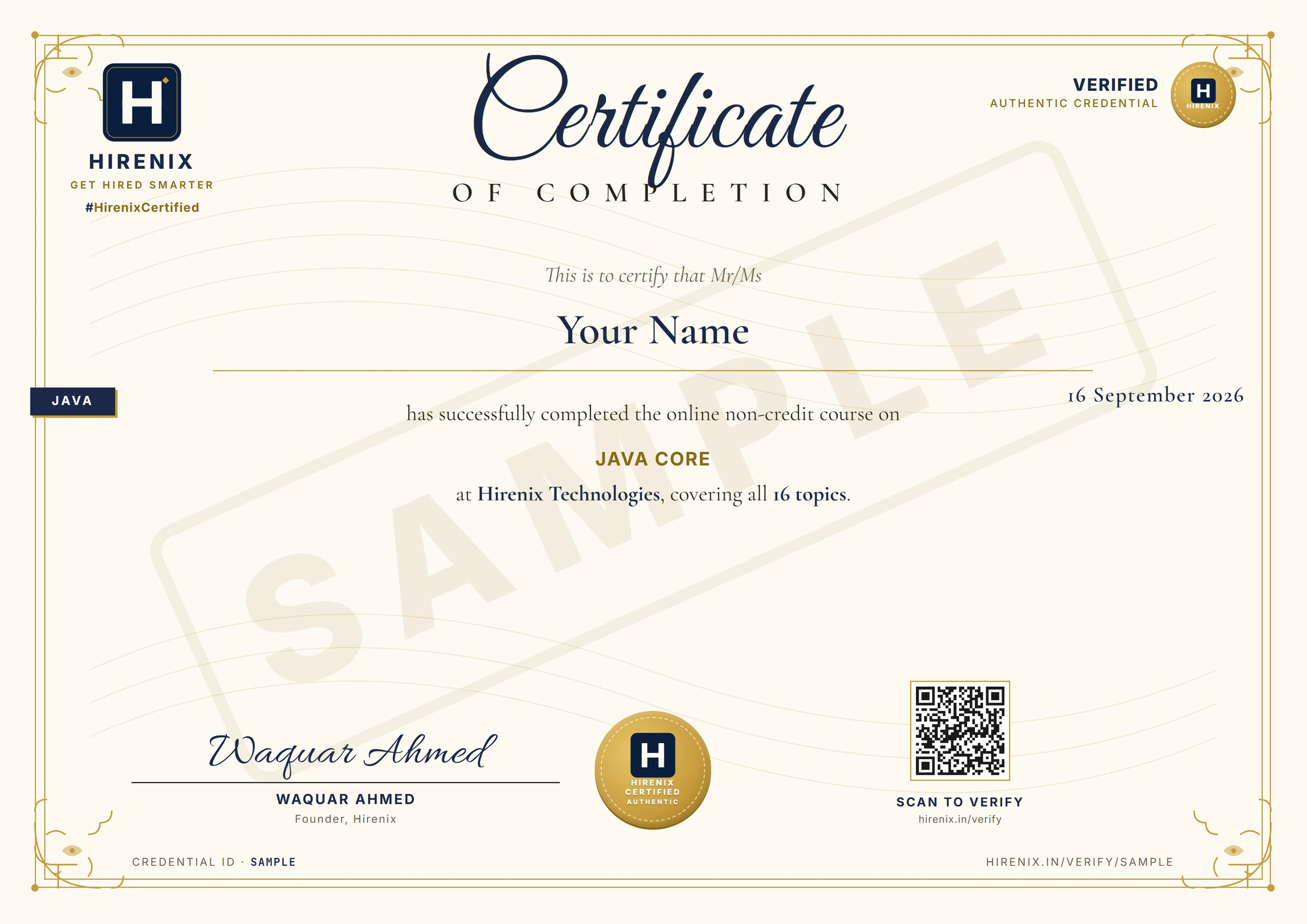
Verified credential
hirenix.in/verify/…
What you’ll learn
- ●What Git is, and why Git is not GitHub
- ●Setup and your first repository
- Working directory, staging area and commitsPro
- Reading history, commit messages and .gitignorePro
- Undoing changes: restore, reset, revert and amendPro
- Branches, HEAD and detached HEADPro
- Merging: fast-forward, three-way and conflictsPro
- Rebase and interactive rebasePro
- Stash: park your unfinished workPro
- Remotes: fetch, pull and pushPro
- GitHub: SSH, tokens and your first pushPro
- Forks and pull requestsPro
- Team workflows and branch protectionPro
- Cherry-pick, tags and releasesPro
- Reflog, recovery and bisectPro
- Git internals: objects, SHA and refsPro
- Power tools: blame, hooks, worktree, submodules and LFSPro
- GitHub extras: Issues, Actions, Pages and ProjectsPro
- RecapPro
- ●Project: Your first repository, from init to push
- Project: Simulate a team conflict and resolve itPro
- Project: The open-source contribution flowPro
Free lessons
What Git is, and why Git is not GitHub
Think of the save points in a video game. Before the boss fight you save. If you die, you do not restart the whole game - you load the save from five minutes ago. You can even keep ten saves and jump to any of them. Now imagine your project folder worked like that: every time something works, you press "save point" and write a one-line note on it. A week later, when a change breaks everything, you load the last good save instead of panicking.
Git is that save-point system for files. Not just for code - for any folder of text files: a website, a resume in HTML, notes, config files.
🌍 Real-world example: Asha is a fresher building her resume website. Without Git her folder slowly becomes
resume.html,resume_new.html,resume_final.html,resume_final_v2.html,resume_final_v2_REAL.html. She no longer knows which one is current, what changed between them, or which one she emailed to the recruiter. With Git there is oneindex.html, and behind it a list of save points - each one with a message ("Add intro line"), an author and a date. Nothing is lost, and nothing is renamed.
💡 version control = a system that records every change to a set of files over time, so you can see what changed, who changed it, and go back.
💡 repository (repo) = the project folder plus its complete recorded history. Git keeps the history in a hidden folder named
.gitinside the project.
💡 commit = one save point: a snapshot of your files at that moment, with a message, an author and a date.
💡 distributed = every person has a full copy of the whole history on their own computer, not just the latest files.
Standard definition: Git is a free, open-source, distributed version control system. It records the history of a project as a series of commits, lets many people work on the same project in parallel through branches, and keeps a complete copy of that history in every clone.
The problem Git solves
Before version control, teams used the same three bad tricks, and each one breaks:
- Copy the folder and rename it (
final_v2_REAL). You cannot tell what differs between two copies without opening both, and the names stop meaning anything within a week. - Email or WhatsApp a zip. Two people edit the same file at the same time, send their versions back, and now someone has to merge them by hand and one person's work gets overwritten.
- Shared folder, one person edits at a time. Safe, but nobody can work in parallel and there is still no history.
Git replaces all three with one idea: the history is the product. Every change is a commit, every commit has an author and a message, and merging two people's work is a tool, not a manual job (you will do that in the merging topic).
Git is not GitHub
This is the most common beginner confusion, and an interviewer will test it in the first five minutes.
| Git | GitHub | |
|---|---|---|
| What it is | A tool installed on your computer | A website / company that hosts Git repositories |
| Needs internet? | No - history lives on your disk | Yes |
| Created | 2005, by Linus Torvalds, for Linux kernel development | A separate company that built a service around Git |
| Gives you | commits, branches, history, merge | a shared home for repos, pull requests, issues, code review, Actions |
| Alternatives | (it is the standard) | GitLab, Bitbucket, and others |
The proof is in the run below: the whole resume-site demo - three commits, a restored file, a clone - happens without GitHub, without an account and without internet. GitHub only enters when you want to share the repo with other people.
The history is written in Git's own documentation: in 2005 the Linux kernel community lost its free access to the proprietary tool it used (BitKeeper), so Linus Torvalds and the community built their own. Its stated design goals include speed, a simple design, strong support for thousands of parallel branches, and being fully distributed.
What the run shows, line by line
Read the terminal output at the bottom of this lesson as you go.
git init -b mainturned an empty folder into a repository. Nothing visible changed except a hidden.gitfolder - that is where all the history will live.git addthengit commitmade the first save point. Git answered[main (root-commit) 07775e0] Add heading: branchmain, the commit's short id07775e0, and your message.root-commitmeans "the very first commit - it has no parent".- Two more
git commit -amcalls made two more save points (-ameans "include my changes to files Git already tracks" - the next topics explain it properly).git log --onelinethen lists all three, newest first, one line each. The short ids will be different on your machine - they are computed from the content, the author and the time. rm index.htmldeleted the file.git status --shortreportedD index.html- Git noticed the file vanished.git restore index.htmlbrought it back from the last commit, andcatshows all three lines intact. That is the "load the save" moment.git show HEAD~2:index.htmlprinted the file as it was two commits ago - only the heading. You looked at an old version without changing anything. (HEADmeans "the commit I am on now";HEAD~2is two commits before it. The branching topic explainsHEADproperly.)git clone resume-site resume-site-copymade a second, independent copy, andgit log --onelineinside it shows the same three commits. The clone did not just copy the latest files - it copied the whole history. That is what "distributed" means in practice.
Snapshots, not file-by-file changes
Many older systems store a project as "this file, plus a list of edits to it". Git's own documentation describes its model differently: it thinks of its data as a series of snapshots of a miniature filesystem. When you commit, Git records what the whole project looks like at that moment (and reuses the unchanged files rather than copying them again). This is conceptual - how Git packs the data on disk is an internals topic later - but it matches what you just saw: looking at an old version was a matter of picking a snapshot, not replaying a list of edits.
Two more consequences, both from the same documentation:
- Almost everything is local. Because the full history is on your disk,
git log,git commit,git diffand going back in time need no network. You can commit on a train and share later. - Everything is checksummed. Git refers to content by a SHA-1 hash, a 40-character hexadecimal string (the
07775e0above is the first 7 characters of one). If a file changes, its hash changes - so corruption does not go unnoticed.
Where Git helps, and where it does not
Two things were run to see the limits, not recited:
1. Large binary files grow the repo fast. A 20 MB random file was committed, and .git measured 20M. The file was then replaced with another 20 MB random file and committed again: .git measured 39M. Both versions are stored forever, because every commit is a permanent snapshot. (Random data does not compress at all, so this is the worst case - ordinary files compress better - but the lesson holds: videos, datasets and installers do not belong in plain Git. Git LFS exists for that and is covered in the power-tools topic.)
2. Deleting a secret from the latest commit does not delete it from history. A file .env containing API_KEY=sk-test-123 was committed, then removed in the next commit. The folder is now clean (ls -A shows only .git), yet git show HEAD~1:.env still prints API_KEY=sk-test-123. Anyone with the repository can read it. A leaked key must be rotated (replaced at the provider), not just deleted - the recovery topic covers how to scrub history, and the history-and-ignore topic covers keeping .env out in the first place.
When to reach for it: use Git for any project that has more than one version in its life: source code, config files, documentation, a portfolio site, even your notes. If you would ever want to answer "what did this look like last Tuesday?" or "who changed this line?", the answer is yes. Use it from day one of a project, even solo - the cost is a few commands, and the first time you break something it pays for itself.
When NOT to rely on it alone: as a backup (a repo that exists only on your laptop is lost with the laptop - you need a remote such as GitHub), as a store for large binaries or datasets, and as a place for secrets. Git is also the wrong tool for files that cannot be merged or compared as text (a Word document, a Photoshop file) - it will store them, but its main strengths, diffing and merging, do not apply.
What interviewers actually ask here
"What is Git?", "What is the difference between Git and GitHub?" and "What does distributed mean?" are asked in almost every fresher interview. A strong answer is three sentences: Git is a distributed version control system that runs locally and records history as commits; GitHub is a hosting service built around Git that adds collaboration (pull requests, issues, CI); and distributed means every clone holds the full history, so most work needs no network. You can now back each sentence with something you ran.
git --version
mkdir resume-site && cd resume-site
git init -b main
echo '<h1>Asha Verma</h1>' > index.html
git add index.html
git commit -m "Add heading"
echo '<p>Fresher, Pune</p>' >> index.html
git commit -am "Add intro line"
echo '<p>Skills: HTML, CSS</p>' >> index.html
git commit -am "Add skills"
git log --oneline
rm index.html
git status --short
git restore index.html
cat index.html
git show HEAD~2:index.html
cd ..
git clone resume-site resume-site-copy
cd resume-site-copy
git log --oneline
Setup and your first repository
Think of joining a new office. Before you can do any work, HR needs two things on your ID card: your name and your email. After that, every file you touch and every register you sign carries that name. Git works the same way. Before your first commit, you tell Git who you are - because every commit it records is stamped with an author name and email.
Setting up Git is therefore four small jobs, done once per computer: install it, tell it who you are, pick the name of your default branch, and start (or copy) a repository.
🌍 Real-world example: Asha gets a new laptop for her first job. She installs Git, runs three
git config --globalcommands (name, email, default branch), and never thinks about it again. Her first week:git clonethe company project, andgit initfor a personal practice folder. If she had skipped the identity step, her very first commit would have failed withAuthor identity unknown- which is exactly what you will see below.
💡 config = Git's settings. They live in plain text files, at three levels (system, global, local), and a more specific level overrides a more general one.
💡 git init = "turn this folder into a repository" - creates the hidden
.gitfolder.
💡 git clone = "copy an existing repository, with its full history, to my computer".
💡 origin = the default nickname Git gives to the place you cloned from.
Standard definition: git config reads and writes Git's settings; git init creates a new, empty repository in the current folder; git clone creates a copy of an existing repository, including all of its history, and remembers where it came from as the remote called origin.
Step 1 - Install and check
Install Git from the official sources listed in the Pro Git book:
| OS | How |
|---|---|
| Windows | Download the installer from git-scm.com/download/win (this is the "Git for Windows" project). A community-maintained Chocolatey package also exists |
| macOS | Run git --version in Terminal - on macOS 10.9 or newer it offers to install the Xcode Command Line Tools if Git is missing. Or use the installer from git-scm.com/download/mac |
| Linux | sudo apt install git-all (Debian/Ubuntu) or sudo dnf install git-all (Fedora/RHEL) |
These install steps come from the Pro Git book and were not run here - Git was already installed on the machine used for this course. What was run is the check: git --version printed git version 2.43.0.windows.1. If that command prints a version, you are done; if it says "command not found", the install did not finish or the terminal needs reopening.
Version note: this course was run on Git 2.43. Two things later in the course need a minimum version, and they are flagged where used: git init -b and the init.defaultBranch setting arrived in Git 2.28 (2020), and git switch / git restore arrived in Git 2.23. Check yours with git --version before blaming a command.
Step 2 - Tell Git who you are
First, see what happens when you do not. In a fresh repository with no identity configured, git commit -m "first" stopped with exit code 128:
Author identity unknown

*** Please tell me who you are.

Run

  git config --global user.email "you@example.com"
  git config --global user.name "Your Name"

to set your account's default identity.
Omit --global to set the identity only in this repository.

fatal: unable to auto-detect email address (got 'asha@my-laptop.(none)')
(The text in the last line is your username and computer name; it was replaced here.) Git refuses to guess. The fix is the two commands in the message, plus the third setting below - and the lesson's run does exactly that.
Why does Git insist? Every commit records the author's name and email. The full git log (without --oneline) prints an Author: and a Date: line for every commit. GitHub uses the email in your Git configuration to associate commits pushed from the command line with your GitHub account - so use the same email address that you have added to your GitHub account, or your commits will not be attributed to you or appear in your contributions graph (per GitHub's documentation on commit email addresses). GitHub also provides a noreply address you can use instead, if you do not want your real email in public history.
Important - this is a label, not a login. Git does not verify it. The run committed with -c user.name="Someone Else" -c user.email="boss@bigcorp.example" and git log happily printed Someone Else <boss@bigcorp.example> not really me. Anyone can write any name. (Proving who wrote a commit is the job of commit signing, covered with GitHub authentication later.) Real access control is the password, token or SSH key you use when talking to GitHub.
Step 3 - The default branch name
Run git init on a machine where init.defaultBranch was never set and Git 2.43 prints a long hint:
hint: Using 'master' as the name for the initial branch. This default branch name
hint: is subject to change. To configure the initial branch name to use in all
hint: of your new repositories, which will suppress this warning, call:
hint:
hint: 	git config --global init.defaultBranch <name>
and git status then says On branch master. Git's own git init documentation says the fallback is currently master and will change to main when Git 3.0 is released. GitHub and most teams already use main, so set it explicitly once - git config --global init.defaultBranch main - and every new repository starts on main with no hint. In the run below the first git status correctly says On branch main.
Step 4 - See and understand your configuration
git config --global --list printed exactly the three lines we set:
user.name=Asha Verma
user.email=asha@example.com
init.defaultbranch=main
Notice Git shows the key in lowercase (init.defaultbranch) - that is how it prints keys; init.defaultBranch as you typed it works the same.
Git has three places for settings, and git config picks one with a flag (git config -h lists --system, --global, --local and --worktree):
| Flag | Applies to | Stored in |
|---|---|---|
--system |
every user on this computer | a system-wide file (on this Windows machine: C:/Program Files/Git/etc/gitconfig) |
--global |
you, in every repo | .gitconfig in your home folder (here: C:/Users/<you>/.gitconfig) |
--local (what git config writes to by default inside a repo - run: a bare git config demo.key v1 landed in .git/config) |
this repository only | .git/config |
The more specific one wins. The run proves it: with user.email = asha@example.com globally, git config --local user.email "asha.work@example.org" made git config user.email print asha.work@example.org. git config --show-origin --get-all user.email shows both values and where each comes from - the global file and .git/config. Then git config --local --unset user.email removed the override and the answer went back to asha@example.com. This is how you use a work email in a company repo and a personal one everywhere else. (--system was not exercised in the run; its place in the order comes from the Git documentation.)
Which scope, when: use --global for things that are true about you (name, personal email, default branch, editor, aliases). Use --local (just omit the flag inside a repo) for things that are true about this project (a work email for one company repo). Avoid --system unless you administer the machine.
A handy setting from the same run: git config --global alias.st "status --short --branch" made git st work as a shortcut. Aliases are only shortcuts for your own machine.
Step 5 - git init: start a repository
In the run: mkdir hello-git && cd hello-git, then git init. Git answered Initialized empty Git repository in ~/hello-git/.git/. Then git status printed:
On branch main

No commits yet

nothing to commit (create/copy files and use "git add" to track)
Read it as: you are on branch main, there is no history yet, and Git sees nothing to track. After echo 'hello git' > notes.txt, git add notes.txt and git commit -m "First commit" the log has one commit.
The hidden .git folder is the repository. ls -A .git listed COMMIT_EDITMSG config description HEAD hooks index info logs objects refs. You do not edit these by hand; the internals topic opens them up. The only thing to remember now: .git is the whole history. Delete it and the folder is just ordinary files again, with every commit gone. (This was not run - it is the definition of what .git holds.) Never delete it to "fix" a problem; deleting .git in a project that has no other copy (no remote, no backup) cannot be undone.
Running git init again in an existing repository is safe: the run printed Reinitialized existing Git repository and changed nothing.
Mistake worth knowing - git init in the wrong folder. The run created sub/ inside an existing repository, ran git init there, and went back to the outer repo. The outer git status --short showed ?? sub/ (untracked), and git add sub failed with error: 'sub/' does not have a commit checked out / fatal: adding files failed. You now have a repository inside a repository, which Git treats as a special case. If you see that, you almost always ran git init one folder too deep (or in the wrong place). Run git status before git init if you are not sure whether the folder is already inside a repository.
Step 6 - git clone: copy an existing repository
git clone hello-git hello-copy created hello-copy/ containing the files and a .git folder with the full history. (Here the source was a local folder so the demo needs no network; in real life it is a URL such as an HTTPS or SSH address from GitHub - the authentication topic covers those.) Inside the clone:
git remote -vprinted two lines:origin ~/hello-git (fetch)andorigin ~/hello-git (push).originis the nickname Git gave the place the clone came from, and it remembers where to fetch from and push to.git statusprintedYour branch is up to date with 'origin/main'andworking tree clean- the clone'smainis already linked toorigin'smain.
git clone <source> <name> also lets you choose the folder name; without the second argument, Git uses the repository's own name.
git init vs git clone: use git init when the project does not exist yet (you are starting from scratch, on your own computer). Use git clone when it already exists somewhere (a company repo, an open-source project, your own repo on GitHub) - you get the files and the history and the origin link in one command. Do not git init and then copy files in from an existing project: you would have the files but none of the history.
When to use --global vs --local config: global for who you are, local for what is special about one project (see Step 4). Mixing them up is the usual reason a commit shows the wrong email.
When NOT to rely on config alone: user.name and user.email are not authentication and not proof of authorship - anyone can set them to anything, as the Someone Else run showed. Never read a commit's author field as evidence of who really wrote it.
What interviewers ask here
"How do you set up Git for the first time?" (install, git config --global user.name, user.email), "What is the difference between git init and git clone?", "What are the three levels of Git config?" and "Where does Git store its data?" (the .git folder). Each of those is one short answer you can now back with a run.
git --version
git config --global user.name "Asha Verma"
git config --global user.email "asha@example.com"
git config --global init.defaultBranch main
git config --global --list
mkdir hello-git && cd hello-git
git init
git status
echo 'hello git' > notes.txt
git add notes.txt
git commit -m "First commit"
git log --oneline
ls -A .git
git config --local user.email "asha.work@example.org"
git config --show-origin --get-all user.email
git config user.email
git config --local --unset user.email
git config user.email
cd ..
git clone hello-git hello-copy
cd hello-copy
git remote -v
git status
Project: Your first repository, from init to push
What you will build: a small portfolio page that lives in a Git repository, with a clean history of two meaningful commits plus one more, and a copy of it on a remote - the same path you take to put a project on GitHub. What you need: Git installed and the setup from the second topic. Nothing else: every command used here is explained the first time it appears, so you can do this project right after topics 1 and 2.
One note about the remote. Pushing to GitHub needs your GitHub account and a login, which cannot be shown in a script. So this project uses a local stand-in: a second folder created with git init --bare github-stand-in.git that behaves like GitHub's side of the connection. Every command you type for the remote is the same as for real GitHub; only the address differs. The last section tells you what to change for GitHub (from GitHub's documentation, not run here).
🌍 Real-world example: Asha is a fresher with a half-finished portfolio page on her laptop. A recruiter asks for a link. If the page lives only in a folder, it can be lost with the laptop and nobody can see it. By the end of this project it has a history, a copy on a remote, and the everyday loop - change, commit, push - she will repeat for the rest of her career.
Step 0 - Tell Git who you are (once per computer)
git config --global user.name "Asha Verma"
git config --global user.email "asha@example.com"
git config --global init.defaultBranch main
Use your own name and email. This is the second topic; if you did it already, skip it. Without it your first commit stops with Author identity unknown.
Step 1 - Make the folder a repository
mkdir my-portfolio && cd my-portfolio created the project folder and moved into it. git init printed Initialized empty Git repository in …/.git/ - Git created a hidden .git folder, which is where it keeps the history. git status printed On branch main, No commits yet and nothing to commit (create/copy files and use "git add" to track): you are on the branch main, and there is no history yet.
Step 2 - Write the first files
Three files were created: index.html (a heading with your name and a one-line intro), README.md (a title and one sentence) and .gitignore (a list of files Git should never track - .DS_Store, node_modules/ and *.log). git status now listed all three under Untracked files: they are in the folder, but Git is not recording them yet.
Step 3 - Stage and commit
Git records history in two moves. git add picks what goes into the next snapshot (like putting items in a box); git commit seals the box with a message.
git add index.html README.md .gitignore, thengit statusprintedChanges to be committed:with the three files markednew file:.git commit -m "Add portfolio page, README and .gitignore"printed[main (root-commit) 1186a30] Add portfolio page, README and .gitignoreand3 files changed, 14 insertions(+).1186a30is the commit's short id (yours will differ);root-commitmeans "the very first commit".git log --onelinelisted the history so far: one line.
A good message says what the commit does, in a short sentence starting with a verb ("Add …", "Fix …"). You will thank yourself in six months.
Step 4 - A second, small commit
A Projects section was appended to index.html. git diff printed exactly what changed (the two lines starting with +). Then git add index.html and git commit -m "Add a Projects section" printed [main cb3dd93] Add a Projects section and 1 file changed, 2 insertions(+). git log --oneline now showed two commits, newest first: cb3dd93 Add a Projects section above 1186a30 Add portfolio page, README and .gitignore.
Small commits that each do one thing are the habit to build now: they are easy to read, review and undo.
Step 5 - Add a remote
A remote is another copy of your repository somewhere else; the usual name is origin. The run created the stand-in with git init --bare github-stand-in.git (a repository with no working folder, which is how servers store repositories), moved back into my-portfolio and ran git remote add origin ../github-stand-in.git. git remote -v printed origin ../github-stand-in.git (fetch) and (push) - the address Git will use to download from and upload to.
Step 6 - The first push
git push -u origin main printed branch 'main' set up to track 'origin/main'. and * [new branch] main -> main. Push uploads your commits to the remote; -u links your local main to the remote's main, so from now on a plain git push or git pull knows where to go. git status then said Your branch is up to date with 'origin/main', and git branch -vv printed * main cb3dd93 [origin/main] Add a Projects section - the square brackets show the link.
Step 7 - Prove it worked
Anyone with the address can now get your work. git clone github-stand-in.git proof-clone made a new folder from the remote; ls proof-clone listed index.html and README.md (the .gitignore is a hidden file, so ls hides it), and git -C proof-clone log --oneline showed the same two commits. (git -C <folder> … simply runs a command as if you were inside that folder.) This is the test to use whenever you wonder "did my push really work?": clone it somewhere else and look.
Step 8 - The everyday loop
Edit, commit, push. sed changed the intro line to mention Git; git status -s printed M index.html (modified, not yet committed). git commit -am "Mention Git in the intro" committed it - the -a means "include my changes to files Git already tracks", so no separate git add was needed for an edit. git push printed cb3dd93..9058662 main -> main. In the other folder, git pull downloaded it (Fast-forward) and its git log --oneline showed three commits, the newest being 9058662 Mention Git in the intro.
Checklist - what "done" looks like
Run these in my-portfolio; you should see:
git status -sbprints## main...origin/main(noaheadorbehind, nothing modified).git rev-parse HEAD origin/main | uniq | wc -lprints1- your latest commit and the remote's are the same commit.git ls-fileslists exactly.gitignore,README.md,index.html.git log --onelineshows three commits with clear messages.- A fresh clone of the remote has the same files and the same three commits.
Using real GitHub instead (from GitHub's documentation - not run)
- On GitHub create a new repository named
my-portfolioand leave it empty - do not tick "Add a README file",.gitignoreor licence. GitHub's "Create repository" form offers a README option; if you tick it, GitHub makes a first commit and your first push will be rejected because your history and its history differ (a later topic shows the fix). - Copy the repository's address (the HTTPS one is
https://github.com/<you>/my-portfolio.git). - Run
git remote add origin <that address>andgit push -u origin main- the same two commands as above. - GitHub's documentation says that over HTTPS Git asks for your username and, as the password, a personal access token (account passwords are no longer accepted for Git); the other way is an SSH key. This project does not go into login details; a later topic in the course explains both, and GitHub's own documentation on remote URLs and personal access tokens covers them too.
If something goes wrong
Author identity unknownon the first commit: do Step 0.nothing to commitafter you edited a file: you may be in the wrong folder (pwd), or the file is ignored by.gitignore.fatal: 'origin' does not appear to be a git repository: you skippedgit remote add origin …, or mistyped the address (git remote -vshows what Git has).- The push was rejected: someone (or you, on the website) put a commit on the remote that you do not have. Do not force it; a later topic shows how to combine the two safely.
Stretch goals
Add a second page about.html and commit it separately; add a line to .gitignore and check that a file matching it does not appear in git status; make a typo in a commit message and, before pushing, look up how to fix it (it is in the undo topic); then clone your repository a third time and confirm the history matches.
git config --global user.name "Asha Verma"
git config --global user.email "asha@example.com"
git config --global init.defaultBranch main
mkdir my-portfolio && cd my-portfolio
git init
git status
printf '<!doctype html>\n<html>\n<head><title>Asha Verma</title></head>\n<body>\n<h1>Asha Verma</h1>\n<p>Fresher. Learning web development.</p>\n</body>\n</html>\n' > index.html
printf '# my-portfolio\n\nMy first Git project.\n' > README.md
printf '.DS_Store\nnode_modules/\n*.log\n' > .gitignore
git status
git add index.html README.md .gitignore
git status
git commit -m "Add portfolio page, README and .gitignore"
git log --oneline
printf '<h2>Projects</h2>\n<ul><li>Cafe menu page</li></ul>\n' >> index.html
git diff
git add index.html
git commit -m "Add a Projects section"
git log --oneline
cd ..
git init --bare github-stand-in.git
cd my-portfolio
git remote add origin ../github-stand-in.git
git remote -v
git push -u origin main
git status
git branch -vv
cd ..
git clone github-stand-in.git proof-clone
ls proof-clone
git -C proof-clone log --oneline
cd my-portfolio
sed -i 's#Fresher. Learning web development.#Fresher. Learning Git and web development.#' index.html
git status -s
git commit -am "Mention Git in the intro"
git push
git log --oneline
git -C ../proof-clone pull
git -C ../proof-clone log --oneline
git status -sb
git rev-parse HEAD origin/main | uniq | wc -l
git ls-files
Git & GitHub Mastery interview questions & answers
10 sample questions below — 66+ in the full bank inside.
How do you automatically close an issue from a pull request, and what are GitHub Pages and GitHub Projects?
Write a closing keyword with the issue number in the PR description or commit - Closes #10 (also close/closed, fix/fixes/fixed, resolve/resolves/resolved); the issue closes when the PR is merged into the default branch (a bare #10 only links). GitHub Pages is free static hosting: it publishes HTML, CSS and JavaScript from a repository (optionally after a build) - no server-side code. GitHub Projects is a table, board and roadmap layered on issues and pull requests, with custom fields and automation, for planning work. Issue and PR templates are plain files under .github/.
In simple terms: From GitHub's documentation (not run). In topic 18 the commit Remove heading (Fixes #12) showed that the keyword is just text that GitHub reads.
What is a merge conflict and how do you resolve it?
A conflict happens when both branches changed the same lines (or one deleted a file the other edited), so Git cannot choose; the merge pauses, it is not an error. git status shows UU <file>, and the file contains markers: between <<<<<<< HEAD and ======= is your side, between ======= and >>>>>>> <branch> the other side. Edit the file to the content you want and delete all three marker lines, git add <file>, then git commit (or --no-edit). To back out of the whole merge: git merge --abort.
In simple terms: Run in topic 7: tea: 25 vs tea: 15 gave CONFLICT (content): Merge conflict in menu.txt and UU menu.txt; git ls-files -u listed stages 1, 2, 3. Git lets you commit leftover markers, so search for <<<<<<< before git add.
What is the difference between a fork, a clone and a branch, and what is a pull request?
A clone is a copy of a repository on your computer (git clone). A fork is a separate repository on GitHub that starts as a copy of another (the upstream) and stays linked to it; a branch is a movable pointer inside one repository. A pull request is a GitHub feature (not a Git command): a proposal to merge one branch into another, often from a fork into the upstream, with discussion and review first. It is named from what you ask the owner to do - pull your changes in.
In simple terms: GitHub's documentation: 'a branch is part of one repository. A fork is a separate repository with its own settings and collaboration space.' Topic 12 ran the git side with two bare repositories: origin (the fork) and upstream.
What is semantic versioning, and how do GitHub releases relate to Git tags?
Semantic versioning numbers releases MAJOR.MINOR.PATCH: MAJOR for incompatible API changes (2.0.0), MINOR for backward-compatible new functionality (1.1.0), PATCH for backward-compatible bug fixes (1.0.1); a hyphen adds a pre-release label such as 1.0.0-rc1. A GitHub release is built on a Git tag: you push an annotated tag, then create the release from it, adding notes (written or auto-generated) and downloadable assets.
In simple terms: From semver.org and GitHub's releases documentation; the tagging step was run in topic 14, the website release form was not.
How do you view and filter commit history? Show the history of a single file and how to find when a piece of text was added or removed.
git log --oneline for a compact list; --author=<name>, --grep=<text> and --since=<date> filter by who, message and when; -3 limits the count; -p shows patches and --stat the changed files; --graph --all --decorate draws branches. The history of one file is git log -- <path> (everything after -- is a path). To find when text appeared or disappeared use the pickaxe: git log -S"API_KEY" lists commits where the number of occurrences changed.
In simple terms: Run in topic 4: -S"API_KEY" listed both the commit that added the key and the one that removed it; git log --oneline -- about.html printed only Add about page.
How do you see which files and lines a particular commit changed, and how do you print a file as it was in an old commit?
git show <commit> prints the commit message and its patch; git show --stat <commit> lists just the changed files with counts; git log -p -1 and git diff <a> <b> compare commits. To print a file as it was then, use git show <commit>:<path>. Commits can be named by hash, by HEAD~1 / HEAD^ (the first parent), or by branch or tag; to find a commit by message use git log --grep=<text>.
In simple terms: Run in topic 4: git show --stat HEAD~2 printed the author, date, full message with body and the file list; HEAD~1 and HEAD^ both resolved to the same commit.
What is the difference between git checkout and git switch?
git switch (Git 2.23 and newer) only changes branches (git switch main, git switch -c new). git restore handles files. git checkout is older and overloaded: it switches branches (git checkout main, git checkout -b new) and also restores files (git checkout -- file), which is why the two commands were split. checkout still works everywhere; on a Git older than 2.23 you must use it.
In simple terms: Topic 6 used git checkout main and git checkout -b docs next to git switch -c hotfix; the extra run used git checkout -- index.html to discard an edit.
How do you delete untracked files safely with git clean?
Always do a dry run first: git clean -n lists what would be removed (add -d for untracked directories, -x to include ignored files). Plain git clean refuses to run without -n, -f or -i. When the list is right, run git clean -f (with -d/-x as needed). The deletion is not undoable by Git, because these files were never tracked.
In simple terms: Run in topic 5: git clean printed clean.requireForce defaults to true ... refusing to clean; -f left the tmpdir/ folder and the ignored debug.log; -d added directories and -x added the ignored file.
What is a branch in Git, and how do you create, switch, rename and delete branches (locally and on the remote)?
A branch is a lightweight, movable pointer to a commit - a file holding one commit hash - so creating one copies nothing. git branch <name> creates it (and stays where you are), git switch <name> moves to it, git switch -c <name> creates and switches (older: git checkout -b <name>), git branch -m <old> <new> renames. git branch -d <name> deletes a merged branch (refuses if unmerged; -D forces). On the remote: git push origin --delete <name>. Local and remote deletions are separate steps.
In simple terms: Run in topic 6: .git/refs/heads/main held a single hash equal to git rev-parse HEAD; git branch -d risky was refused as not fully merged and -D forced it; git push origin --delete feature/search printed - [deleted].
What is the difference between git fetch and git pull?
git fetch downloads new commits and updates the remote-tracking branches such as origin/main, without touching your working folder or local branches - you can review with git log main..origin/main and git diff main origin/main first. git pull is git fetch followed by a merge (or a rebase with --rebase) of the upstream branch into your current branch. Fetch to look; pull to look and integrate in one step.
In simple terms: Run in topic 10: after git fetch, git status said behind 'origin/main' by 1 commit while menu.txt was unchanged; the reflog recorded the later pull as pull: Fast-forward. This family appeared in all nine prep lists the question bank was planned from.
56+ more Git & GitHub Mastery questions inside
Start free to read the first 10 with model answers and take a voice mock interview. The full question bank comes with Pro.
Start free