Hirenix kaise padhata hai
Ek chapter. 90 minute.
Interview ke liye taiyaar.
Har concept ek real-world problem se — jaisa production code mein aata hai, waisa. Ratna nahi padta, samajh aa jaata hai. Har question ka model answer diya hai: interviewer ko exactly kya bolna hai, aur kyun. Phir usi chapter ka AI mock interview.
- 📖Concept, 5 min meinJargon nahi — seedhi baat
- 🛠️Real-world problemJaisa production code mein aata hai
- 💬Model answerInterview mein kya bolna hai
- 🧠FlashcardsRevision 10 min mein
- 🤖AI mock interviewFollow-up bhi poochta hai
- 📊Weak topicsKahan phans rahe ho, pata chale

Farq content ka nahi, filter ka hai — sirf wahi jo production mein actually use hota hai aur interview mein actually poocha jaata hai. Kitaabi topics jo industry mein kahin nahi chalte, wo yahan nahi milenge.
Certificates
Learn all 22 topics and earn your Git & GitHub Mastery certificate
Finish every Git & GitHub Mastery topic and a certificate with your name on it is issued instantly. No exam, no waiting. Download it, share it on LinkedIn, and put it on your resume.
Chapter certificate
Your name, the Git & GitHub Mastery course and all 22 topics on it.
Anyone can verify it
Each certificate has a QR code and a public link at hirenix.in/verify.
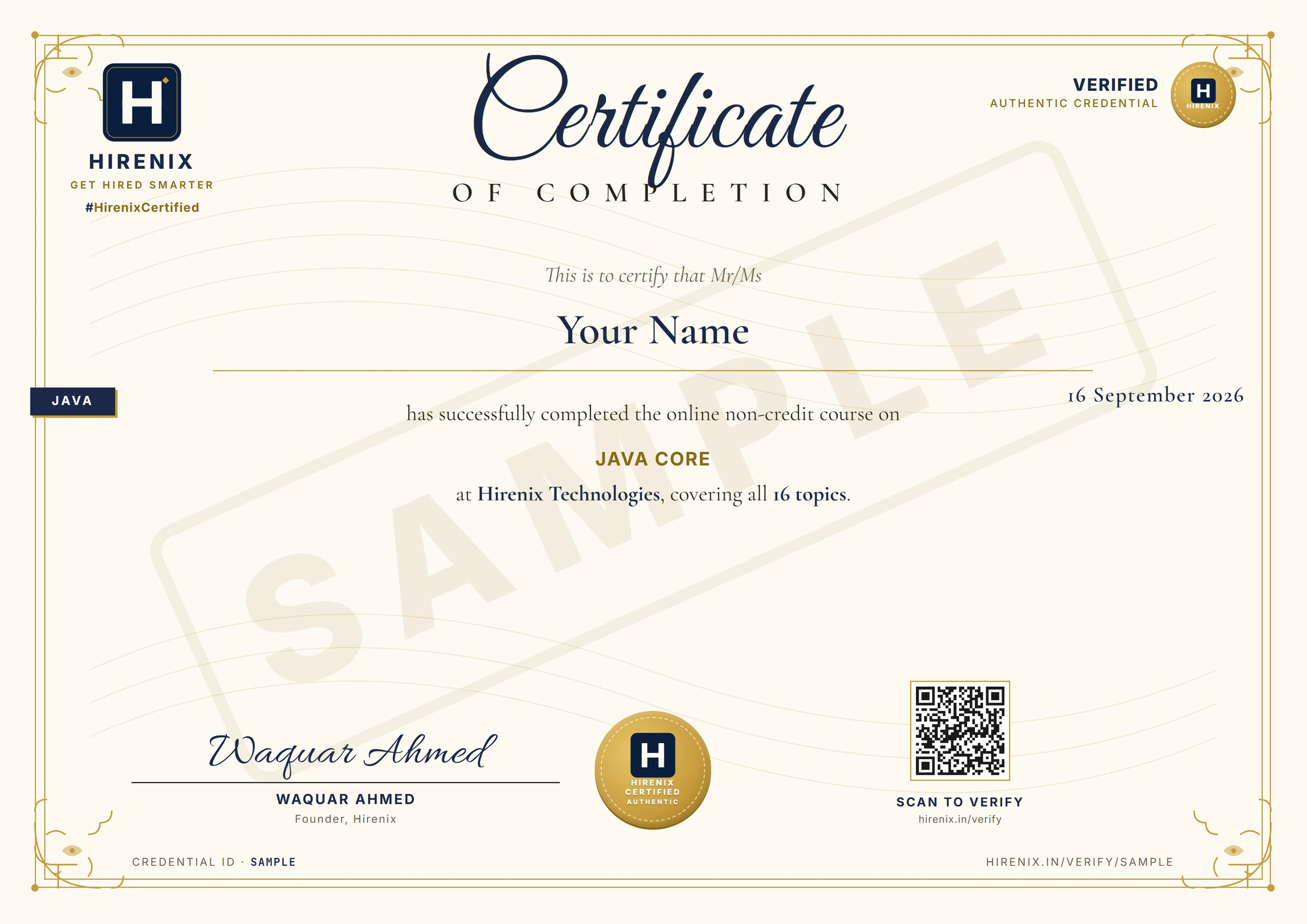
Verified credential
hirenix.in/verify/…
What you’ll learn
- ●Git kya hai, aur Git GitHub kyun nahi hai
- ●Setup aur aapki pehli repository
- Working directory, staging area aur commitsPro
- History padhna, commit messages aur .gitignorePro
- Changes undo karna: restore, reset, revert aur amendPro
- Branches, HEAD aur detached HEADPro
- Merging: fast-forward, three-way aur conflictsPro
- Rebase aur interactive rebasePro
- Stash: adhoora kaam side me rakhnaPro
- Remotes: fetch, pull aur pushPro
- GitHub: SSH, tokens aur pehla pushPro
- Forks aur pull requestsPro
- Team workflows aur branch protectionPro
- Cherry-pick, tags aur releasesPro
- Reflog, recovery aur bisectPro
- Git internals: objects, SHA aur refsPro
- Power tools: blame, hooks, worktree, submodules aur LFSPro
- GitHub extras: Issues, Actions, Pages aur ProjectsPro
- RecapPro
- ●Project: Aapki pehli repository, init se push tak
- Project: Team conflict simulate karke resolve karnaPro
- Project: Open-source contribution ka poora flowPro
Free lessons
Git kya hai, aur Git GitHub kyun nahi hai
Video game ke save points yaad kijiye. Boss fight se pehle aap save karte hain. Mar gaye to poora game dobara nahi khelte - paanch minute pehle wala save load kar lete hain. Aap das save rakh sakte hain aur kisi bhi par wapas ja sakte hain. Ab socha jaaye ki aapka project folder bhi aisa hi chalta: jab bhi kuch sahi chal raha ho, "save point" daba do aur uspar ek line ka note likh do. Ek hafte baad koi change sab kuch tod de, to ghabrane ki jagah aap last good save load kar lete.
Git files ke liye wahi save-point system hai. Sirf code ke liye nahi - text files ke kisi bhi folder ke liye: website, HTML me likha resume, notes, config files.
🌍 Real-world example: Asha ek fresher hai jo apni resume website bana rahi hai. Git ke bina uska folder dheere-dheere ban jaata hai
resume.html,resume_new.html,resume_final.html,resume_final_v2.html,resume_final_v2_REAL.html. Use pata nahi hota ki current kaunsi hai, doosri se kya badla, ya recruiter ko mail kaunsi gayi thi. Git ke saath ek hiindex.htmlhoti hai, aur uske peeche save points ki list - har ek par message ("Add intro line"), author aur date. Kuch khota nahi, aur kuch rename nahi karna padta.
💡 version control = ek system jo files ke set me har change ko waqt ke saath record karta hai, taaki aap dekh sakein kya badla, kisne badla, aur wapas ja sakein.
💡 repository (repo) = project folder plus uski poori recorded history. Git history ko project ke andar
.gitnaam ke hidden folder me rakhta hai.
💡 commit = ek save point: us pal par aapki files ka snapshot, message, author aur date ke saath.
💡 distributed = har insaan ke computer par poori history ki full copy hoti hai, sirf latest files nahi.
Standard definition: Git ek free, open-source distributed version control system hai. Wo project ki history ko commits ki series ki tarah record karta hai, branches ke zariye kai logon ko ek hi project par parallel kaam karne deta hai, aur har clone me us history ki poori copy rakhta hai.
Git kaunsi problem solve karta hai
Version control se pehle teams wahi teen bure tareeke use karti thi, aur teeno toot-te hain:
- Folder copy karke rename karna (
final_v2_REAL). Do copies me kya alag hai ye dono kholkar hi pata chalta hai, aur naam ek hafte me bekaar ho jaate hain. - Zip email ya WhatsApp karna. Do log ek hi file ek saath edit karte hain, apne versions wapas bhejte hain, aur ab kisi ko haath se merge karna padta hai aur ek insaan ka kaam overwrite ho jaata hai.
- Shared folder, ek time par ek hi insaan edit kare. Safe hai, par parallel kaam nahi ho sakta aur history phir bhi nahi milti.
Git in teeno ko ek idea se replace karta hai: history hi product hai. Har change ek commit hai, har commit ka author aur message hai, aur do logon ka kaam merge karna ek tool hai, haath ka kaam nahi (merging topic me aap ye karenge).
Git, GitHub nahi hai
Ye beginners ka sabse common confusion hai, aur interviewer pehle paanch minute me ye test karta hai.
| Git | GitHub | |
|---|---|---|
| Ye kya hai | Aapke computer par install hone wala tool | Ek website / company jo Git repositories host karti hai |
| Internet chahiye? | Nahi - history aapki disk par hai | Haan |
| Kab bana | 2005, Linus Torvalds ne, Linux kernel development ke liye | Alag company jisne Git ke upar ek service banayi |
| Kya deta hai | commits, branches, history, merge | repos ka shared ghar, pull requests, issues, code review, Actions |
| Alternatives | (ye standard hai) | GitLab, Bitbucket, aur bhi |
Saboot neeche ke run me hai: poora resume-site demo - teen commits, restore ki hui file, ek clone - bina GitHub, bina account aur bina internet ke hota hai. GitHub tab aata hai jab aap repo doosron ke saath share karna chahte hain.
Ye itihaas Git ki apni documentation me likha hai: 2005 me Linux kernel community ka jis proprietary tool (BitKeeper) tak free access tha wo chhin gaya, to Linus Torvalds aur community ne apna tool banaya. Uske design goals me speed, simple design, hazaaron parallel branches ka strong support, aur fully distributed hona shamil hain.
Run me kya dikha, line by line
Is lesson ke neeche ka terminal output saath-saath padhiye.
git init -b mainne ek khaali folder ko repository bana diya. Dikhne me sirf ek hidden.gitfolder aaya - saari history yahin rahegi.git addphirgit commitne pehla save point banaya. Git ne jawab diya[main (root-commit) 07775e0] Add heading: branchmain, commit ki chhoti id07775e0, aur aapka message.root-commitka matlab "bilkul pehla commit - iska koi parent nahi".- Do aur
git commit -amne do aur save points banaye (-aka matlab "jo files Git pehle se track karta hai unke mere changes bhi shamil karo" - agle topics me ise theek se samjhaya gaya hai).git log --onelineteeno ko dikhata hai, sabse naya sabse upar, ek line me ek. Chhoti ids aapki machine par alag hongi - wo content, author aur time se nikalti hain. rm index.htmlne file delete kar di.git status --shortneD index.htmlbataya - Git ne dekh liya ki file gayab hai.git restore index.htmlne use last commit se wapas la diya, aurcatme teeno lines salaamat hain. Ye hai "save load karne" wala pal.git show HEAD~2:index.htmlne file ko waisa dikhaya jaisi wo do commits pehle thi - sirf heading. Aapne kuch badle bina purana version dekh liya. (HEADka matlab "jis commit par main abhi hoon";HEAD~2uske do commit pehle wala. Branching topicHEADko theek se samjhata hai.)git clone resume-site resume-site-copyne doosri, independent copy banayi, aur uske andargit log --onelinewahi teen commits dikhata hai. Clone ne sirf latest files nahi, poori history copy ki. "Distributed" ka practical matlab yahi hai.
Snapshots, file-by-file changes nahi
Bahut se purane systems project ko "ye file, aur uspar edits ki list" ki tarah store karte hain. Git ki apni documentation uska model alag batati hai: wo apne data ko ek miniature filesystem ke snapshots ki series ki tarah dekhta hai. Commit karte waqt Git record karta hai ki us pal poora project kaisa dikhta hai (aur jo files badli nahi unhe dobara copy nahi karta, purani ko hi reuse karta hai). Ye conceptual hai - disk par Git data ko kaise pack karta hai wo baad ka internals topic hai - par ye aapne abhi jo dekha usse milta hai: purana version dekhna ek snapshot chunna tha, edits ki list replay karna nahi.
Isi documentation ke do aur nateeje:
- Lagbhag sab kuch local hai. Poori history aapki disk par hai, isliye
git log,git commit,git diffaur purane waqt me jaane ke liye network nahi chahiye. Aap train me commit kar sakte hain aur baad me share. - Sab kuch checksum hota hai. Git content ko SHA-1 hash se refer karta hai, 40-character hexadecimal string (upar ka
07775e0uske pehle 7 characters hain). File badli to hash badal jaata hai - isliye corruption chhup nahi sakti.
Git kahan madad karta hai, aur kahan nahi
Limits dekhne ke liye do cheezein chalayi gayi, ratti nahi:
1. Bade binary files se repo tezi se phoolta hai. Ek 20 MB ki random file commit ki, aur .git 20M naapa gaya. Phir file ko doosri 20 MB random file se badla aur dobara commit kiya: .git 39M nikla. Dono versions hamesha ke liye store hain, kyunki har commit ek permanent snapshot hai. (Random data bilkul compress nahi hota, isliye ye worst case hai - aam files behtar compress hoti hain - par seekh wahi hai: videos, datasets aur installers plain Git me nahi rakhne chahiye. Git LFS isi ke liye hai, power-tools topic me aayega.)
2. Latest commit se secret delete karne se history se delete nahi hota. .env file jisme API_KEY=sk-test-123 tha commit ki, phir agle commit me hata di. Folder ab saaf hai (ls -A sirf .git dikhata hai), phir bhi git show HEAD~1:.env ab bhi API_KEY=sk-test-123 chhapta hai. Repository jiske paas bhi hai wo ise padh sakta hai. Leak hui key ko rotate karna padta hai (provider par badalna), sirf delete karna kaafi nahi - recovery topic me history scrub karna aayega, aur history-and-ignore topic me .env ko pehle hi bahar rakhna.
Kab use karein: jis project ki zindagi me ek se zyada version honge uske liye Git use kijiye: source code, config files, documentation, portfolio site, notes bhi. Agar kabhi ye sawaal aaye "ye pichhle mangalwar kaisa dikhta tha?" ya "ye line kisne badli?", to jawab haan hai. Project ke pehle din se use kijiye, akele kaam karte hue bhi - cost kuch commands ka hai, aur pehli baar jab kuch toot-ta hai tab ye apna daam wasool kar deta hai.
Kab NAHI use karein (sirf Git par bharosa): backup ki tarah (jo repo sirf aapke laptop par hai wo laptop ke saath chala jaata hai - remote chahiye, jaise GitHub), bade binaries ya datasets ke store ki tarah, aur secrets ki jagah ki tarah. Jo files text ki tarah compare ya merge nahi ho sakti (Word document, Photoshop file) unke liye bhi Git galat tool hai - store kar lega, par uski asli taakat, diff aur merge, wahan kaam nahi karti.
Interviewer yahan asal me kya poochte hain
"Git kya hai?", "Git aur GitHub me kya farak hai?" aur "distributed ka kya matlab?" lagbhag har fresher interview me poochhe jaate hain. Strong jawab teen vaakya ka hota hai: Git ek distributed version control system hai jo locally chalta hai aur history ko commits ki tarah record karta hai; GitHub Git ke upar bani hosting service hai jo collaboration (pull requests, issues, CI) jodti hai; aur distributed ka matlab har clone me poori history hoti hai, isliye zyadatar kaam ko network nahi chahiye. Ab aap har vaakya ke peeche kuch aisa rakh sakte hain jo aapne khud chalaya.
git --version
mkdir resume-site && cd resume-site
git init -b main
echo '<h1>Asha Verma</h1>' > index.html
git add index.html
git commit -m "Add heading"
echo '<p>Fresher, Pune</p>' >> index.html
git commit -am "Add intro line"
echo '<p>Skills: HTML, CSS</p>' >> index.html
git commit -am "Add skills"
git log --oneline
rm index.html
git status --short
git restore index.html
cat index.html
git show HEAD~2:index.html
cd ..
git clone resume-site resume-site-copy
cd resume-site-copy
git log --oneline
Setup aur aapki pehli repository
Socha jaaye ki aap naye office join kar rahe hain. Koi kaam shuru karne se pehle HR ko aapke ID card par do cheezein chahiye: aapka naam aur email. Uske baad aap jo bhi file chhuyenge aur jis bhi register par sign karenge, usme wahi naam hoga. Git bhi yahi karta hai. Pehle commit se pehle aap Git ko batate hain ki aap kaun hain - kyunki Git jo bhi commit record karta hai uspar author ka naam aur email lagta hai.
Isliye Git setup karna chaar chhote kaam hain, jo har computer par ek baar hote hain: install karna, Git ko batana ki aap kaun hain, default branch ka naam chunna, aur ek repository shuru karna (ya copy karna).
🌍 Real-world example: Asha ko pehli job me naya laptop milta hai. Wo Git install karti hai, teen
git config --globalcommands (naam, email, default branch) chalati hai, aur phir kabhi unke baare me nahi sochti. Pehle hafte me: company ka projectgit clonekarna, aur apne practice folder ke liyegit init. Agar wo identity wala step chhod deti, to uska bilkul pehla commitAuthor identity unknownke saath fail ho jaata - jo aap neeche dekhenge.
💡 config = Git ki settings. Ye plain text files me rehti hain, teen level par (system, global, local), aur zyada specific level general level ko override karta hai.
💡 git init = "is folder ko repository bana do" - hidden
.gitfolder banata hai.
💡 git clone = "kisi maujooda repository ko, poori history ke saath, mere computer par copy kar do".
💡 origin = jis jagah se aapne clone kiya, Git us jagah ko jo default nickname deta hai.
Standard definition: git config Git ki settings padhta aur likhta hai; git init maujooda folder me ek naya, khaali repository banata hai; git clone kisi maujooda repository ki copy banata hai, uski saari history ke saath, aur ye yaad rakhta hai ki wo kahan se aayi - remote origin ke naam se.
Step 1 - Install karein aur check karein
Git ko Pro Git book me di gayi official sources se install kijiye:
| OS | Kaise |
|---|---|
| Windows | git-scm.com/download/win se installer download kijiye (ye "Git for Windows" project hai). Community-maintained Chocolatey package bhi hai |
| macOS | Terminal me git --version chalaiye - macOS 10.9 ya naye par Git na ho to ye Xcode Command Line Tools install karne ka offer deta hai. Ya git-scm.com/download/mac ka installer |
| Linux | sudo apt install git-all (Debian/Ubuntu) ya sudo dnf install git-all (Fedora/RHEL) |
Ye install steps Pro Git book se hain aur yahan chalaye nahi gaye - is course ki machine par Git pehle se install tha. Jo chalaya gaya wo check hai: git --version ne git version 2.43.0.windows.1 chhapa. Agar ye command version dikhaye to ho gaya; "command not found" aaye to install poora nahi hua ya terminal dobara kholna padega.
Version note: ye course Git 2.43 par chalaya gaya hai. Course me aage do cheezein minimum version maangti hain, aur jahan use hoti hain wahan flag ki gayi hain: git init -b aur init.defaultBranch setting Git 2.28 (2020) me aaye, aur git switch / git restore Git 2.23 me. Kisi command ko doshi thehrane se pehle git --version se apna version dekh lijiye.
Step 2 - Git ko batayein ki aap kaun hain
Pehle dekhiye ki na batane par kya hota hai. Ek fresh repository me, jahan identity configure nahi thi, git commit -m "first" exit code 128 ke saath ruk gaya:
Author identity unknown

*** Please tell me who you are.

Run

  git config --global user.email "you@example.com"
  git config --global user.name "Your Name"

to set your account's default identity.
Omit --global to set the identity only in this repository.

fatal: unable to auto-detect email address (got 'asha@my-laptop.(none)')
(Aakhri line ka text aapka username aur computer ka naam hota hai; yahan badal diya gaya.) Git andaza lagane se mana karta hai. Fix wahi do commands hain jo message me hain, aur neeche wali teesri setting - aur is lesson ka run bilkul yahi karta hai.
Git itna zor kyun deta hai? Har commit me author ka naam aur email record hota hai. Poora git log (--oneline ke bina) har commit ke liye Author: aur Date: line chhapta hai. GitHub aapki Git configuration ke email ka use karke command line se push kiye gaye commits ko aapke GitHub account se jodta hai - isliye wahi email address use kijiye jo aapne apne GitHub account me add kiya hai, warna aapke commits aapke naam par nahi dikhenge aur contributions graph me nahi aayenge (GitHub ki commit email addresses wali documentation ke mutabik). Agar aap public history me apna asli email nahi chahte, to GitHub ek noreply address bhi deta hai jo aap use kar sakte hain.
Zaroori - ye label hai, login nahi. Git ise verify nahi karta. Run me -c user.name="Someone Else" -c user.email="boss@bigcorp.example" ke saath commit kiya aur git log ne khushi se Someone Else <boss@bigcorp.example> not really me chhapa. Koi bhi koi bhi naam likh sakta hai. (Commit kisne likha ye saabit karna commit signing ka kaam hai, jo baad me GitHub authentication ke saath aayega.) Asli access control wo password, token ya SSH key hai jo aap GitHub se baat karte waqt use karte hain.
Step 3 - Default branch ka naam
Aisi machine par git init chalaiye jahan init.defaultBranch kabhi set nahi hua, to Git 2.43 ek lamba hint chhapta hai:
hint: Using 'master' as the name for the initial branch. This default branch name
hint: is subject to change. To configure the initial branch name to use in all
hint: of your new repositories, which will suppress this warning, call:
hint:
hint: 	git config --global init.defaultBranch <name>
aur git status phir On branch master kehta hai. Git ki apni git init documentation kehti hai ki fallback abhi master hai aur Git 3.0 release hone par main ho jaayega. GitHub aur zyadatar teams pehle se main use karti hain, isliye ise ek baar explicitly set kar dijiye - git config --global init.defaultBranch main - aur har naya repository bina hint ke main par shuru hoga. Neeche ke run me pehla git status sahi me On branch main kehta hai.
Step 4 - Apni configuration dekhein aur samjhein
git config --global --list ne bilkul wahi teen lines chhapi jo humne set ki thi:
user.name=Asha Verma
user.email=asha@example.com
init.defaultbranch=main
Dhyan dijiye Git key ko lowercase me dikhata hai (init.defaultbranch) - Git keys isi tarah chhapta hai; aapne jaise likha, init.defaultBranch, wo bhi waisa hi chalta hai.
Git me settings ke teen ghar hain, aur git config ek flag se unme se ek chunta hai (git config -h me --system, --global, --local aur --worktree dikhte hain):
| Flag | Kispar lagta hai | Kahan store hota hai |
|---|---|---|
--system |
is computer ke har user par | ek system-wide file (is Windows machine par: C:/Program Files/Git/etc/gitconfig) |
--global |
aap par, har repo me | home folder ki .gitconfig (yahan: C:/Users/<you>/.gitconfig) |
--local (repo ke andar git config default me yahi likhta hai - run: bina flag ka git config demo.key v1 .git/config me gaya) |
sirf is repository par | .git/config |
Zyada specific wala jeetta hai. Run saabit karta hai: globally user.email = asha@example.com hote hue, git config --local user.email "asha.work@example.org" ke baad git config user.email ne asha.work@example.org chhapa. git config --show-origin --get-all user.email dono values aur har ek kahan se aayi dikhata hai - global file aur .git/config. Phir git config --local --unset user.email ne override hata diya aur jawab wapas asha@example.com ho gaya. Company ke repo me work email aur baaki sab jagah personal email isi tarah chalta hai. (--system run me nahi chalaya gaya; uska order me sthaan Git documentation se hai.)
Kaun sa scope, kab: --global un cheezon ke liye jo aapke baare me sach hain (naam, personal email, default branch, editor, aliases). --local (repo ke andar bas flag chhod dijiye) un cheezon ke liye jo is project ke baare me sach hain (kisi ek company repo ka work email). --system se tab tak door rahiye jab tak aap machine administer na karte hon.
Usi run ki ek kaam ki setting: git config --global alias.st "status --short --branch" se git st shortcut ban gaya. Aliases sirf aapki apni machine ke shortcuts hain.
Step 5 - git init: repository shuru karein
Run me: mkdir hello-git && cd hello-git, phir git init. Git ne jawab diya Initialized empty Git repository in ~/hello-git/.git/. Phir git status ne chhapa:
On branch main

No commits yet

nothing to commit (create/copy files and use "git add" to track)
Ise aise padhiye: aap branch main par hain, abhi koi history nahi hai, aur Git ko track karne ko kuch dikh nahi raha. echo 'hello git' > notes.txt, git add notes.txt aur git commit -m "First commit" ke baad log me ek commit hai.
Hidden .git folder hi repository hai. ls -A .git ne COMMIT_EDITMSG config description HEAD hooks index info logs objects refs dikhaya. Inhe haath se edit nahi karte; internals topic inhe kholega. Abhi bas ek cheez yaad rakhiye: .git poori history hai. Use delete kar do to folder phir se sirf normal files rah jaata hai, har commit gayab. (Ye chalaya nahi gaya - ye is baat ki definition hai ki .git me kya hai.) Kisi problem ko "theek karne" ke liye ise kabhi delete mat kijiye; jis project ki koi aur copy nahi (na remote, na backup) usme .git delete karna undo nahi ho sakta.
Maujooda repository me git init dobara chalana safe hai: run me Reinitialized existing Git repository chhapa aur kuch nahi badla.
Jaanne layak galti - galat folder me git init. Run me ek maujooda repository ke andar sub/ banaya, wahan git init chalaya, aur wapas bahar wale repo me aaye. Bahar wale git status --short ne ?? sub/ (untracked) dikhaya, aur git add sub fail hua: error: 'sub/' does not have a commit checked out / fatal: adding files failed. Ab aapke paas repository ke andar repository hai, jise Git ek special case maanta hai. Ye dikhe to lagbhag hamesha aapne git init ek folder zyada andar (ya galat jagah) chalaya tha. Agar pakka nahi ki folder pehle se kisi repository ke andar hai ya nahi, to git init se pehle git status chalaiye.
Step 6 - git clone: maujooda repository copy karein
git clone hello-git hello-copy ne hello-copy/ banaya jisme files aur poori history wala .git folder hai. (Yahan source ek local folder tha taaki demo ko network na chahiye; asli zindagi me ye URL hota hai, jaise GitHub ka HTTPS ya SSH address - authentication topic unhe cover karta hai.) Clone ke andar:
git remote -vne do lines chhapi:origin ~/hello-git (fetch)aurorigin ~/hello-git (push).originwo nickname hai jo Git ne us jagah ko diya jahan se clone aaya, aur wo yaad rakhta hai ki kahan se fetch karna aur kahan push karna hai.git statusne chhapaYour branch is up to date with 'origin/main'aurworking tree clean- clone kimainpehle seoriginkimainse judi hai.
git clone <source> <name> folder ka naam chunne bhi deta hai; doosra argument na do to Git repository ka apna naam use karta hai.
git init vs git clone: git init tab jab project abhi exist hi nahi karta (aap apne computer par scratch se shuru kar rahe hain). git clone tab jab wo kahin pehle se exist karta hai (company repo, open-source project, GitHub par aapka apna repo) - ek command me aapko files aur history aur origin link milta hai. git init karke maujooda project ki files copy mat kijiye: files hongi par history nahi.
Config --global vs --local kab: global us ke liye jo aap hain, local us ke liye jo ek project me khaas hai (Step 4 dekhiye). Inhe mila dene se aam taur par commit galat email ke saath dikhta hai.
Kab NAHI use karein (sirf config par bharosa): user.name aur user.email authentication nahi hain aur authorship ka saboot nahi hain - koi bhi unhe kuch bhi set kar sakta hai, jaisa Someone Else run ne dikhaya. Commit ke author field ko kabhi is baat ka saboot mat maniye ki asal me kisne likha.
Interviewer yahan kya poochte hain
"Git pehli baar kaise set up karte hain?" (install, git config --global user.name, user.email), "git init aur git clone me kya farak hai?", "Git config ke teen levels kaun se hain?" aur "Git apna data kahan rakhta hai?" (.git folder). In sab ka ek chhota jawab hai jise ab aap ek run se back kar sakte hain.
git --version
git config --global user.name "Asha Verma"
git config --global user.email "asha@example.com"
git config --global init.defaultBranch main
git config --global --list
mkdir hello-git && cd hello-git
git init
git status
echo 'hello git' > notes.txt
git add notes.txt
git commit -m "First commit"
git log --oneline
ls -A .git
git config --local user.email "asha.work@example.org"
git config --show-origin --get-all user.email
git config user.email
git config --local --unset user.email
git config user.email
cd ..
git clone hello-git hello-copy
cd hello-copy
git remote -v
git status
Project: Aapki pehli repository, init se push tak
Aap kya banayenge: ek chhota portfolio page jo Git repository me rehta hai, do arthpurn commits aur ek aur commit ki saaf history ke saath, aur uski ek copy remote par - wahi raasta jo aap kisi project ko GitHub par daalne ke liye lete hain. Aapko kya chahiye: Git install ho aur doosre topic ka setup ho. Aur kuch nahi: yahan use hua har command pehli baar aate hi samjhaya gaya hai, isliye aap ye project topic 1 aur 2 ke turant baad kar sakte hain.
Remote ke baare me ek note. GitHub par push karne ke liye aapka GitHub account aur login chahiye, jo script me dikhaya nahi ja sakta. Isliye ye project ek local stand-in use karta hai: git init --bare github-stand-in.git se bana doosra folder jo connection ke GitHub wale side ki tarah behave karta hai. Remote ke liye jo bhi command aap type karte hain wo asli GitHub jaisa hi hai; sirf address alag hai. Aakhri section batata hai ki GitHub ke liye kya badalna hai (GitHub ki documentation se, yahan chalaya nahi).
🌍 Real-world example: Asha ek fresher hai jiske laptop par aadha bana portfolio page hai. Ek recruiter link maangta hai. Agar page sirf folder me hai, to laptop ke saath kho sakta hai aur koi use dekh nahi sakta. Is project ke ant tak uski history hai, remote par copy hai, aur wo roz ka loop - change, commit, push - hai jo wo apne poore career me dohrayegi.
Step 0 - Git ko batayiye aap kaun hain (har computer par ek baar)
git config --global user.name "Asha Verma"
git config --global user.email "asha@example.com"
git config --global init.defaultBranch main
Apna naam aur email use kijiye. Ye doosra topic hai; pehle kar chuke hon to skip kijiye. Iske bina aapka pehla commit Author identity unknown ke saath ruk jaata hai.
Step 1 - Folder ko repository banaiye
mkdir my-portfolio && cd my-portfolio ne project folder banaya aur usme gaya. git init ne Initialized empty Git repository in …/.git/ chhapa - Git ne ek hidden .git folder banaya, jahan wo history rakhta hai. git status ne On branch main, No commits yet aur nothing to commit (create/copy files and use "git add" to track) chhapa: aap branch main par hain, aur abhi koi history nahi.
Step 2 - Pehli files likhiye
Teen files banayin: index.html (aapke naam ka heading aur ek line ka intro), README.md (title aur ek vaakya) aur .gitignore (un files ki list jinhe Git kabhi track na kare - .DS_Store, node_modules/ aur *.log). git status ne ab teeno ko Untracked files ke neeche list kiya: wo folder me hain, par Git unhe abhi record nahi kar raha.
Step 3 - Stage aur commit
Git history do chaalon me record karta hai. git add chunta hai ki agle snapshot me kya jaayega (box me cheezein rakhne jaisa); git commit box ko message ke saath seal karta hai.
git add index.html README.md .gitignore, phirgit statusneChanges to be committed:chhapa jisme teeno filesnew file:ke saath thin.git commit -m "Add portfolio page, README and .gitignore"ne[main (root-commit) 1186a30] Add portfolio page, README and .gitignoreaur3 files changed, 14 insertions(+)chhapa.1186a30commit ki chhoti id hai (aapki alag hogi);root-commitka matlab "bilkul pehla commit".git log --onelinene ab tak ki history list ki: ek line.
Achha message batata hai ki commit kya karta hai, ek chhote vaakya me jo kriya se shuru ho ("Add …", "Fix …"). Chhe mahine baad aap khud ko dhanyavaad denge.
Step 4 - Doosra, chhota commit
index.html me ek Projects section joda gaya. git diff ne exactly chhapa ki kya badla (+ se shuru hone wali do lines). Phir git add index.html aur git commit -m "Add a Projects section" ne [main cb3dd93] Add a Projects section aur 1 file changed, 2 insertions(+) chhapa. git log --oneline ne ab do commits dikhaye, naya pehle: cb3dd93 Add a Projects section, 1186a30 Add portfolio page, README and .gitignore ke upar.
Chhote commits jo har ek ek hi kaam karein - ye wo aadat hai jo abhi banaiye: unhe padhna, review karna aur undo karna aasaan hota hai.
Step 5 - Remote jodiye
Remote kahin aur rakhi aapki repository ki doosri copy hai; aam naam origin hai. Run ne stand-in git init --bare github-stand-in.git se banaya (bina working folder wali repository, jaise servers repositories store karte hain), my-portfolio me wapas gaya aur git remote add origin ../github-stand-in.git chalaya. git remote -v ne origin ../github-stand-in.git (fetch) aur (push) chhapa - wo address jisse Git download aur upload karega.
Step 6 - Pehla push
git push -u origin main ne branch 'main' set up to track 'origin/main'. aur * [new branch] main -> main chhapa. Push aapke commits ko remote par upload karta hai; -u aapki local main ko remote ki main se jodta hai, isliye ab se seedha git push ya git pull jaanta hai kahan jaana hai. git status ne phir kaha Your branch is up to date with 'origin/main', aur git branch -vv ne * main cb3dd93 [origin/main] Add a Projects section chhapa - square brackets link dikhate hain.
Step 7 - Saabit kijiye ki chal gaya
Address wala koi bhi ab aapka kaam le sakta hai. git clone github-stand-in.git proof-clone ne remote se naya folder banaya; ls proof-clone ne index.html aur README.md list kiye (.gitignore hidden file hai, isliye ls use chhupata hai), aur git -C proof-clone log --oneline ne wahi do commits dikhaye. (git -C <folder> … bas command ko aise chalata hai jaise aap us folder ke andar hon.) Jab bhi shak ho "mera push sach me chala?", ye test use kijiye: use kahin aur clone karke dekhiye.
Step 8 - Roz ka loop
Edit, commit, push. sed ne intro line ko Git ka zikr karne wala banaya; git status -s ne M index.html chhapa (modified, abhi commit nahi). git commit -am "Mention Git in the intro" ne use commit kiya - -a ka matlab "jo files Git pehle se track karta hai unke mere changes shamil karo", isliye edit ke liye alag git add nahi chahiye tha. git push ne cb3dd93..9058662 main -> main chhapa. Doosre folder me git pull ne use download kiya (Fast-forward) aur uske git log --oneline ne teen commits dikhaye, sabse naya 9058662 Mention Git in the intro.
Checklist - "ho gaya" kaisa dikhta hai
Ye my-portfolio me chalaiye; aapko ye dikhna chahiye:
git status -sb## main...origin/mainchhapta hai (naaheadnabehind, kuch modified nahi).git rev-parse HEAD origin/main | uniq | wc -l1chhapta hai - aapka latest commit aur remote ka wahi commit hain.git ls-filesbilkul.gitignore,README.md,index.htmllist karta hai.git log --onelinesaaf messages ke saath teen commits dikhata hai.- Remote ke fresh clone me wahi files aur wahi teen commits hain.
Asli GitHub use karna (GitHub ki documentation se - chalaya nahi)
- GitHub par
my-portfolionaam ki nayi repository banaiye aur use khaali rakhiye - "Add a README file",.gitignoreya licence tick mat kijiye. GitHub ke "Create repository" form me README option hai; use tick karne par GitHub pehla commit bana deta hai aur aapka pehla push reject ho jaata hai kyunki aapki aur uski history alag hain (baad ka topic fix dikhata hai). - Repository ka address copy kijiye (HTTPS wala
https://github.com/<you>/my-portfolio.githai). git remote add origin <wo address>aurgit push -u origin mainchalaiye - upar jaise hi do commands.- GitHub ki documentation kehti hai ki HTTPS par Git aapka username maangta hai aur password ki jagah personal access token (Git ke liye account passwords ab accept nahi hote); doosra tareeka SSH key hai. Ye project login ki details me nahi jaata; course ka ek baad ka topic dono samjhata hai, aur GitHub ki apni documentation bhi remote URLs aur personal access tokens par ye cover karti hai.
Kuch galat ho to
- Pehle commit par
Author identity unknown: Step 0 kijiye. - File edit karne ke baad
nothing to commit: shayad aap galat folder me hain (pwd), ya file.gitignorese ignore ho rahi hai. fatal: 'origin' does not appear to be a git repository: aapnegit remote add origin …chhod diya, ya address galat type kiya (git remote -vdikhata hai Git ke paas kya hai).- Push reject hua: kisi ne (ya aapne website par) remote par aisa commit rakha jo aapke paas nahi. Force mat kijiye; baad ka topic dikhata hai ki dono ko surakshit tareeke se kaise milate hain.
Aage badhne ke liye
Ek doosra page about.html jodiye aur use alag commit kijiye; .gitignore me ek line jodiye aur check kijiye ki uske match wali file git status me nahi aati; commit message me typo kijiye aur push se pehle dekhiye ki use kaise theek karte hain (wo undo topic me hai); phir apni repository ko teesri baar clone karke confirm kijiye ki history match karti hai.
git config --global user.name "Asha Verma"
git config --global user.email "asha@example.com"
git config --global init.defaultBranch main
mkdir my-portfolio && cd my-portfolio
git init
git status
printf '<!doctype html>\n<html>\n<head><title>Asha Verma</title></head>\n<body>\n<h1>Asha Verma</h1>\n<p>Fresher. Learning web development.</p>\n</body>\n</html>\n' > index.html
printf '# my-portfolio\n\nMy first Git project.\n' > README.md
printf '.DS_Store\nnode_modules/\n*.log\n' > .gitignore
git status
git add index.html README.md .gitignore
git status
git commit -m "Add portfolio page, README and .gitignore"
git log --oneline
printf '<h2>Projects</h2>\n<ul><li>Cafe menu page</li></ul>\n' >> index.html
git diff
git add index.html
git commit -m "Add a Projects section"
git log --oneline
cd ..
git init --bare github-stand-in.git
cd my-portfolio
git remote add origin ../github-stand-in.git
git remote -v
git push -u origin main
git status
git branch -vv
cd ..
git clone github-stand-in.git proof-clone
ls proof-clone
git -C proof-clone log --oneline
cd my-portfolio
sed -i 's#Fresher. Learning web development.#Fresher. Learning Git and web development.#' index.html
git status -s
git commit -am "Mention Git in the intro"
git push
git log --oneline
git -C ../proof-clone pull
git -C ../proof-clone log --oneline
git status -sb
git rev-parse HEAD origin/main | uniq | wc -l
git ls-files
Git & GitHub Mastery interview questions & answers
10 sample questions below — 66+ in the full bank inside.
Merge conflict kya hai aur use resolve kaise karte hain?
Conflict tab hota hai jab dono branches ne wahi lines badli hon (ya ek ne wo file delete ki jo doosre ne edit ki), isliye Git chun nahi sakta; merge ruk jaata hai, ye error nahi hai. git status UU <file> dikhata hai, aur file me markers hote hain: <<<<<<< HEAD aur ======= ke beech aapki side, ======= aur >>>>>>> <branch> ke beech doosri side. File ko wo content dijiye jo chahiye aur teeno marker lines hataiye, git add <file>, phir git commit (ya --no-edit). Poore merge se peeche hatne ke liye: git merge --abort.
In simple terms: Topic 7 me chalaya gaya: tea: 25 vs tea: 15 ne CONFLICT (content): Merge conflict in menu.txt aur UU menu.txt diya; git ls-files -u ne stages 1, 2, 3 list kiye. Git bache hue markers commit karne deta hai, isliye git add se pehle <<<<<<< search kijiye.
Pull request se issue apne aap kaise close karte hain, aur GitHub Pages aur GitHub Projects kya hain?
PR description ya commit me issue number ke saath closing keyword likhiye - Closes #10 (close/closed, fix/fixes/fixed, resolve/resolves/resolved bhi); issue tab close hota hai jab PR default branch me merge ho (akela #10 sirf link karta hai). GitHub Pages free static hosting hai: ye repository se HTML, CSS aur JavaScript publish karta hai (optional build ke baad) - server-side code nahi. GitHub Projects issues aur pull requests ke upar table, board aur roadmap hai, custom fields aur automation ke saath, kaam plan karne ke liye. Issue aur PR templates .github/ ke neeche sadharan files hain.
In simple terms: GitHub ki documentation se (chalaya nahi). Topic 18 me commit Remove heading (Fixes #12) ne dikhaya ki keyword bas text hai jise GitHub padhta hai.
Commit history kaise dekhte aur filter karte hain? Ek file ki history aur ye dhoondhna ki koi text kab joda ya hataya gaya batayiye.
Chhoti list ke liye git log --oneline; --author=<name>, --grep=<text> aur --since=<date> kisne, message aur kab se filter karte hain; -3 ginti seemit karta hai; -p patches aur --stat badli hui files dikhata hai; --graph --all --decorate branches banata hai. Ek file ki history git log -- <path> hai (-- ke baad sab path hai). Text kab aaya ya gaya ye dhoondhne ke liye pickaxe: git log -S"API_KEY" wo commits list karta hai jahan occurrences ki ginti badli.
In simple terms: Topic 4 me chalaya gaya: -S"API_KEY" ne key jodne wala aur hatane wala dono commit list kiye; git log --oneline -- about.html ne sirf Add about page chhapa.
Kisi khaas commit ne kaunsi files aur lines badli ye kaise dekhte hain, aur purane commit me file jaisi thi waisi kaise chhapte hain?
git show <commit> commit message aur uska patch chhapta hai; git show --stat <commit> sirf badli hui files ginti ke saath list karta hai; git log -p -1 aur git diff <a> <b> commits ki tulna karte hain. File ko waisa chhapne ke liye jaisi wo tab thi, git show <commit>:<path> use kijiye. Commits ko hash se, HEAD~1 / HEAD^ (pehla parent) se, ya branch ya tag se naam diya ja sakta hai; message se commit dhoondhne ke liye git log --grep=<text>.
In simple terms: Topic 4 me chalaya gaya: git show --stat HEAD~2 ne author, date, body samet poora message aur file list chhapi; HEAD~1 aur HEAD^ dono ek hi commit par pahunche.
git checkout aur git switch me kya farak hai?
git switch (Git 2.23 aur naya) sirf branches badalta hai (git switch main, git switch -c new). git restore files sambhalta hai. git checkout purana aur overloaded hai: wo branches badalta hai (git checkout main, git checkout -b new) aur files bhi restore karta hai (git checkout -- file), isiliye dono commands baante gaye. checkout ab bhi har jagah chalta hai; 2.23 se purane Git par aapko wahi use karna padega.
In simple terms: Topic 6 ne git switch -c hotfix ke saath git checkout main aur git checkout -b docs use kiye; extra run ne edit discard karne ke liye git checkout -- index.html use kiya.
Git me branch kya hai, aur branches ko create, switch, rename aur delete (locally aur remote par) kaise karte hain?
Branch ek commit ki taraf ishara karne wala halka, movable pointer hai - ek commit hash wali file - isliye banane se kuch copy nahi hota. git branch <name> ise banata hai (aur aap wahin rehte hain), git switch <name> us par jaata hai, git switch -c <name> banata aur switch karta hai (purana: git checkout -b <name>), git branch -m <old> <new> rename karta hai. git branch -d <name> merged branch delete karta hai (unmerged ho to mana karta hai; -D force karta hai). Remote par: git push origin --delete <name>. Local aur remote deletion alag steps hain.
In simple terms: Topic 6 me chalaya gaya: .git/refs/heads/main me ek hash tha jo git rev-parse HEAD ke barabar tha; git branch -d risky not fully merged ke saath mana hua aur -D ne force kiya; git push origin --delete feature/search ne - [deleted] chhapa.
git clean se untracked files safely kaise delete karte hain?
Hamesha pehle dry run kijiye: git clean -n list karta hai kya hatega (untracked directories ke liye -d, ignored files ke liye -x jodiye). Akela git clean bina -n, -f ya -i ke chalne se mana kar deta hai. List sahi ho to git clean -f chalaiye (zaroorat par -d/-x ke saath). Ye deletion Git se undo nahi hota, kyunki ye files kabhi track hi nahi hui thin.
In simple terms: Topic 5 me chalaya gaya: git clean ne clean.requireForce defaults to true ... refusing to clean chhapa; -f ne tmpdir/ folder aur ignored debug.log chhod diye; -d ne directories aur -x ne ignored file jodi.
Fork, clone aur branch me kya farak hai, aur pull request kya hai?
Clone aapke computer par repository ki copy hai (git clone). Fork GitHub par ek alag repository hai jo kisi aur (upstream) ki copy se shuru hoti hai aur usse judi rehti hai; branch ek repository ke andar movable pointer hai. Pull request GitHub ka feature hai (Git command nahi): ek branch ko doosri me merge karne ka prastaav, aksar fork se upstream me, pehle discussion aur review ke saath. Naam is se aaya ki aap maalik se kya maangte hain - aapke changes pull kare.
In simple terms: GitHub ki documentation: 'a branch is part of one repository. A fork is a separate repository with its own settings and collaboration space.' Topic 12 ne git wala hissa do bare repositories ke saath chalaya: origin (fork) aur upstream.
Semantic versioning kya hai, aur GitHub releases Git tags se kaise jude hain?
Semantic versioning releases ko MAJOR.MINOR.PATCH number deta hai: incompatible API changes ke liye MAJOR (2.0.0), backward-compatible nayi functionality ke liye MINOR (1.1.0), backward-compatible bug fixes ke liye PATCH (1.0.1); hyphen pre-release label jodta hai jaise 1.0.0-rc1. GitHub release Git tag par bani hai: aap annotated tag push karte hain, phir usse release banate hain, notes (likhe ya auto-generated) aur downloadable assets ke saath.
In simple terms: semver.org aur GitHub ki releases documentation se; tagging step topic 14 me chalaya gaya, website ka release form nahi.
git fetch aur git pull me kya farak hai?
git fetch naye commits download karta hai aur origin/main jaise remote-tracking branches update karta hai, aapke working folder ya local branches ko chhue bina - pehle git log main..origin/main aur git diff main origin/main se review kar sakte hain. git pull git fetch ke baad upstream branch ka current branch me merge (ya --rebase se rebase) hai. Dekhne ke liye fetch; dekhna aur integrate karna ek step me chahiye to pull.
In simple terms: Topic 10 me chalaya gaya: git fetch ke baad git status ne behind 'origin/main' by 1 commit kaha jabki menu.txt nahi badli thi; reflog ne baad ke pull ko pull: Fast-forward record kiya. Ye family un nau prep lists me se har ek me aayi jinse question bank plan hua.
56+ more Git & GitHub Mastery questions inside
Start free to read the first 10 with model answers and take a voice mock interview. The full question bank comes with Pro.
Start free